Sermon
Written Guide
Sermons nearly always have more than one scripture reading throughout the sermon, so the slight difference is we'll need to add more scripture.
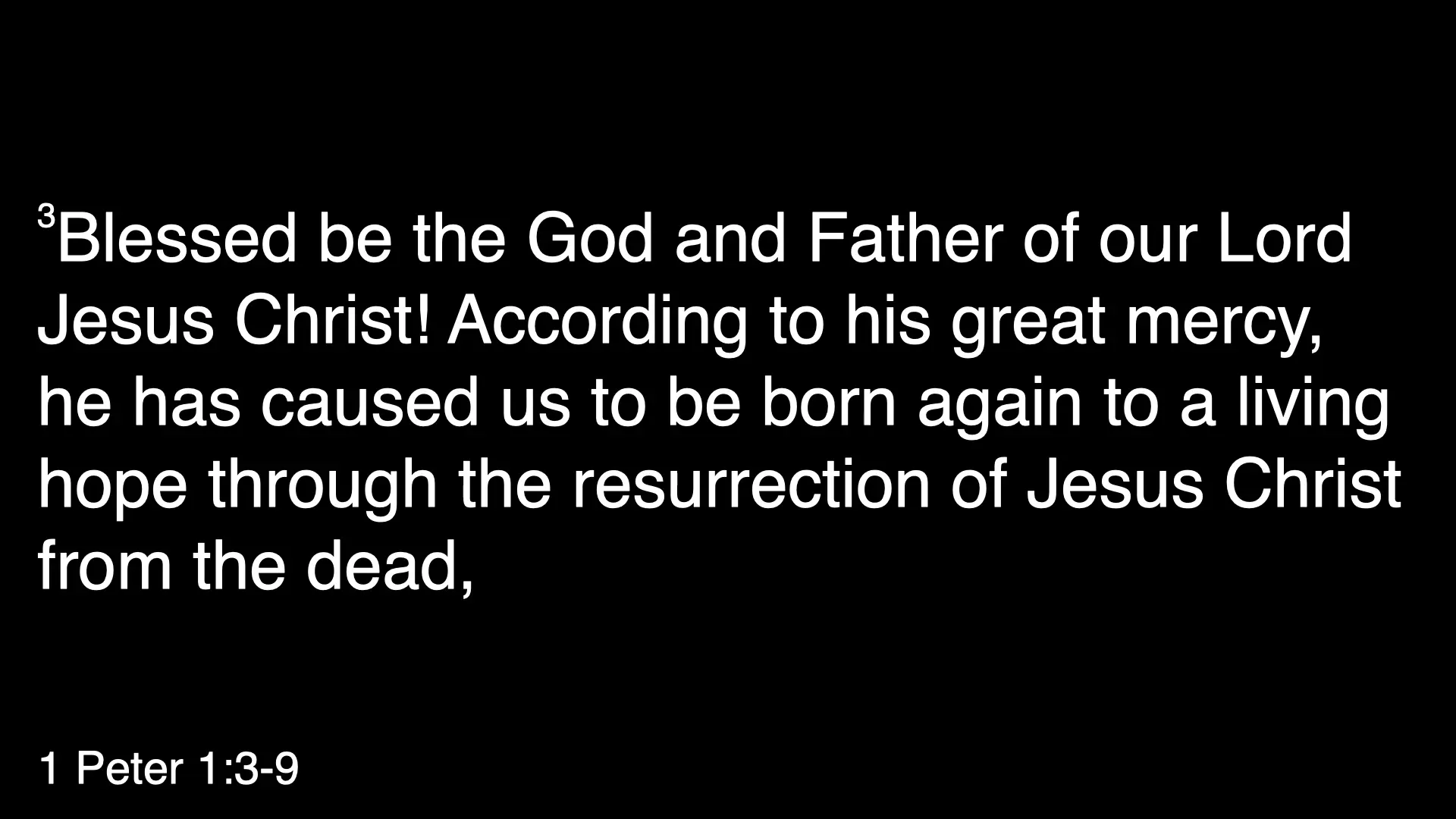
Scripture will look like this for the audience.
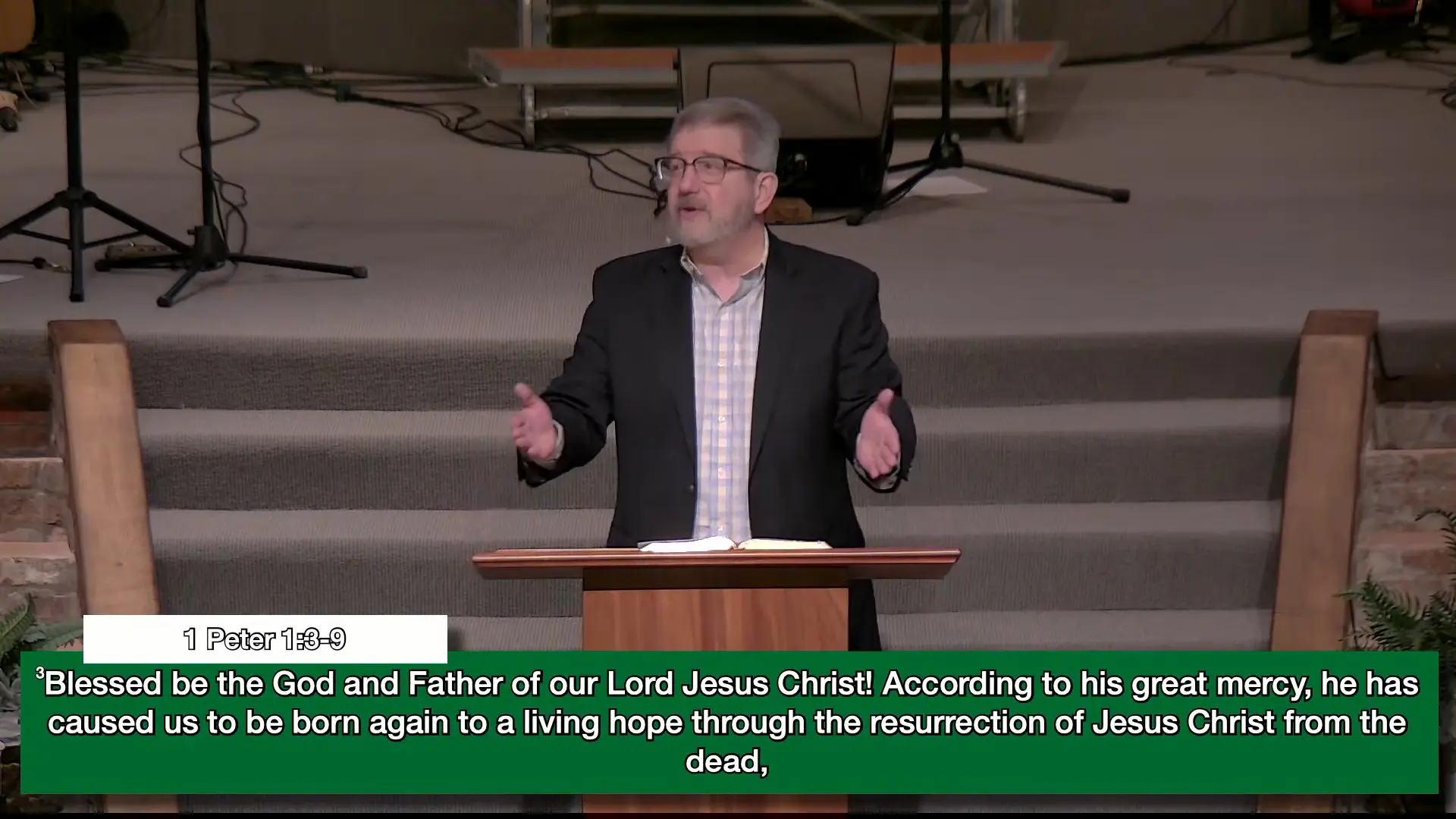
And like this for the live stream.
Here's how to add it.
Planning Center
In Planning Center, scripture reading is typically done by a speaker from the audience, or it's something put in by a worship leader.
In this case, it's added between a few songs, and was labeled "Responsive Reading"
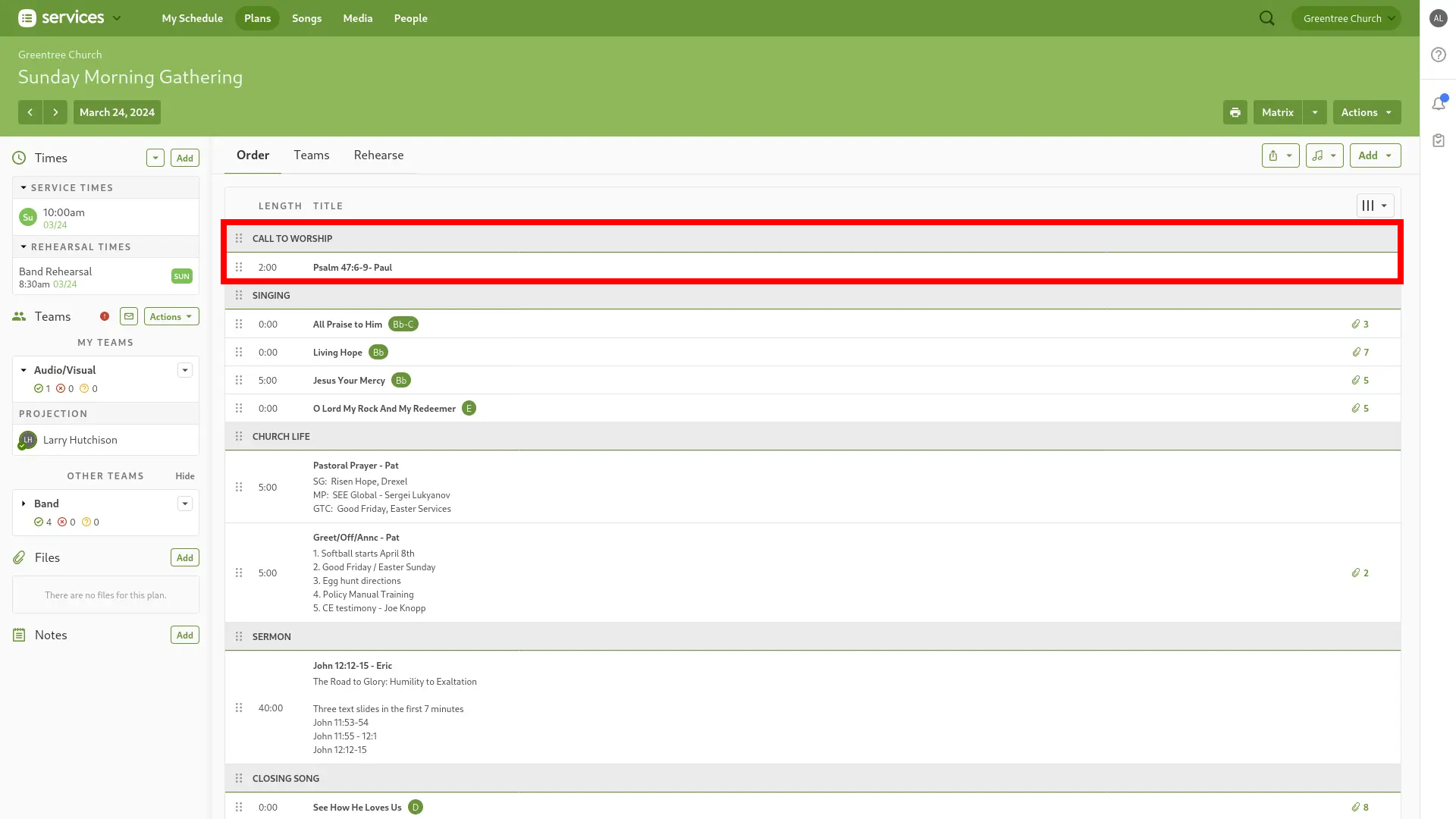
Click on the item to get more detail if needed.
All we really need is the scripture they're referencing, which can be in the title AND the description.
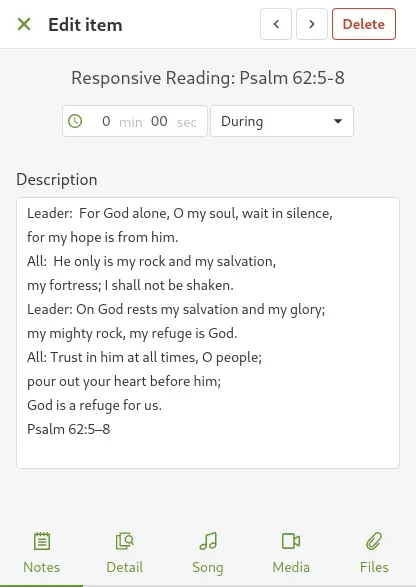
OR the info may only be in the title.

Either way, copy the scripture as needed.
ProPresenter
In Planning Center, navigate to the Sermons Library.
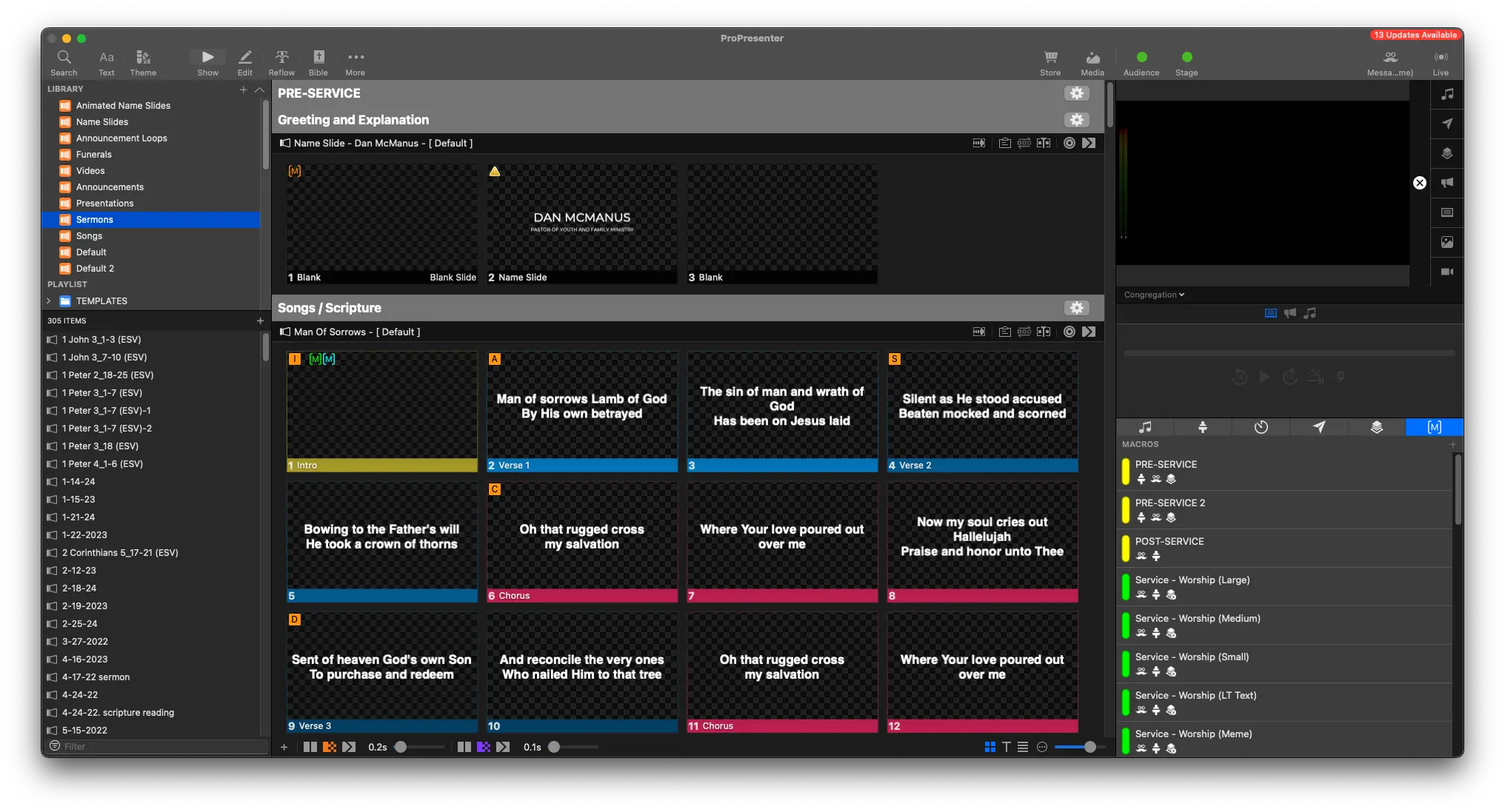

In the bottom left of the playlist view, look for the search box
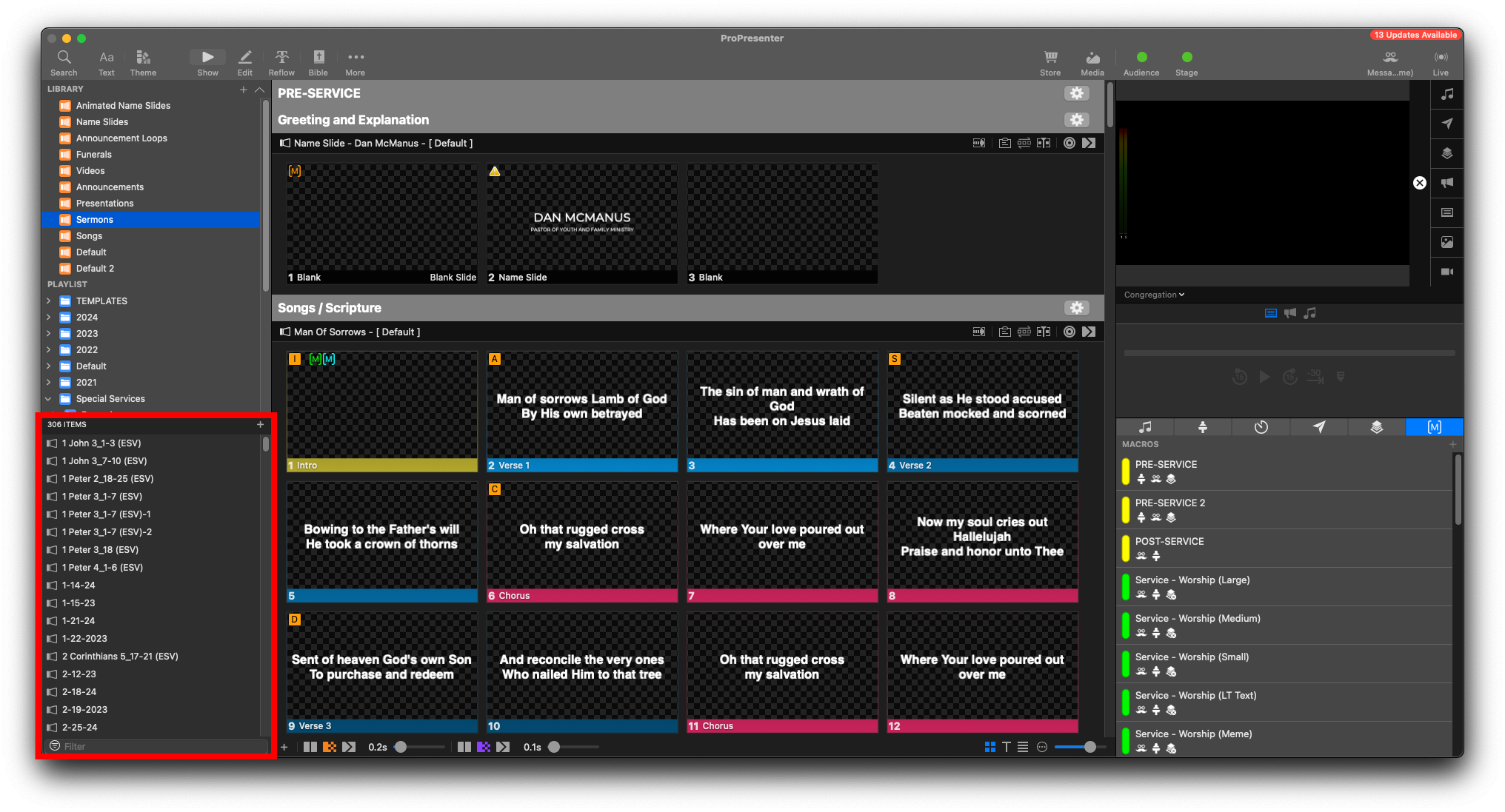
Search for Template

Duplicate the Sermon Template
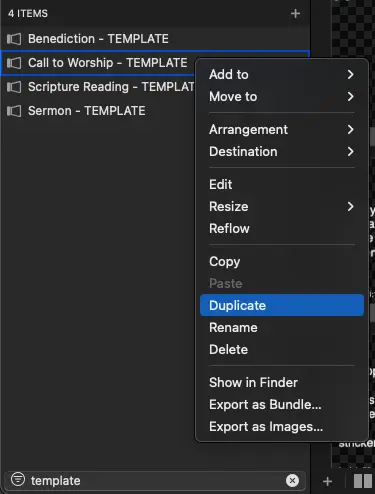
Right Click the copied template, and select Rename
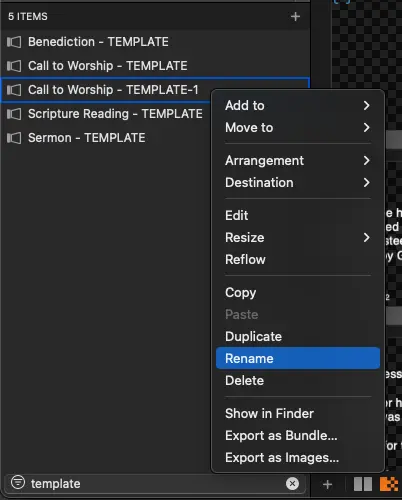
Rename it to be relevant to the current event, typically the Date of the Service

Add the event name or date to the end of the scripture. This will make searching for it far easier.
From the Toolbar at the top, select Bible
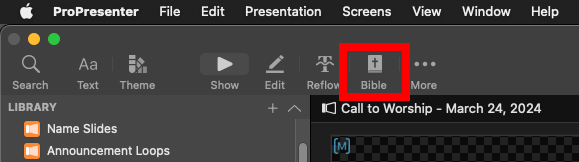
This will bring you to the Bible Page
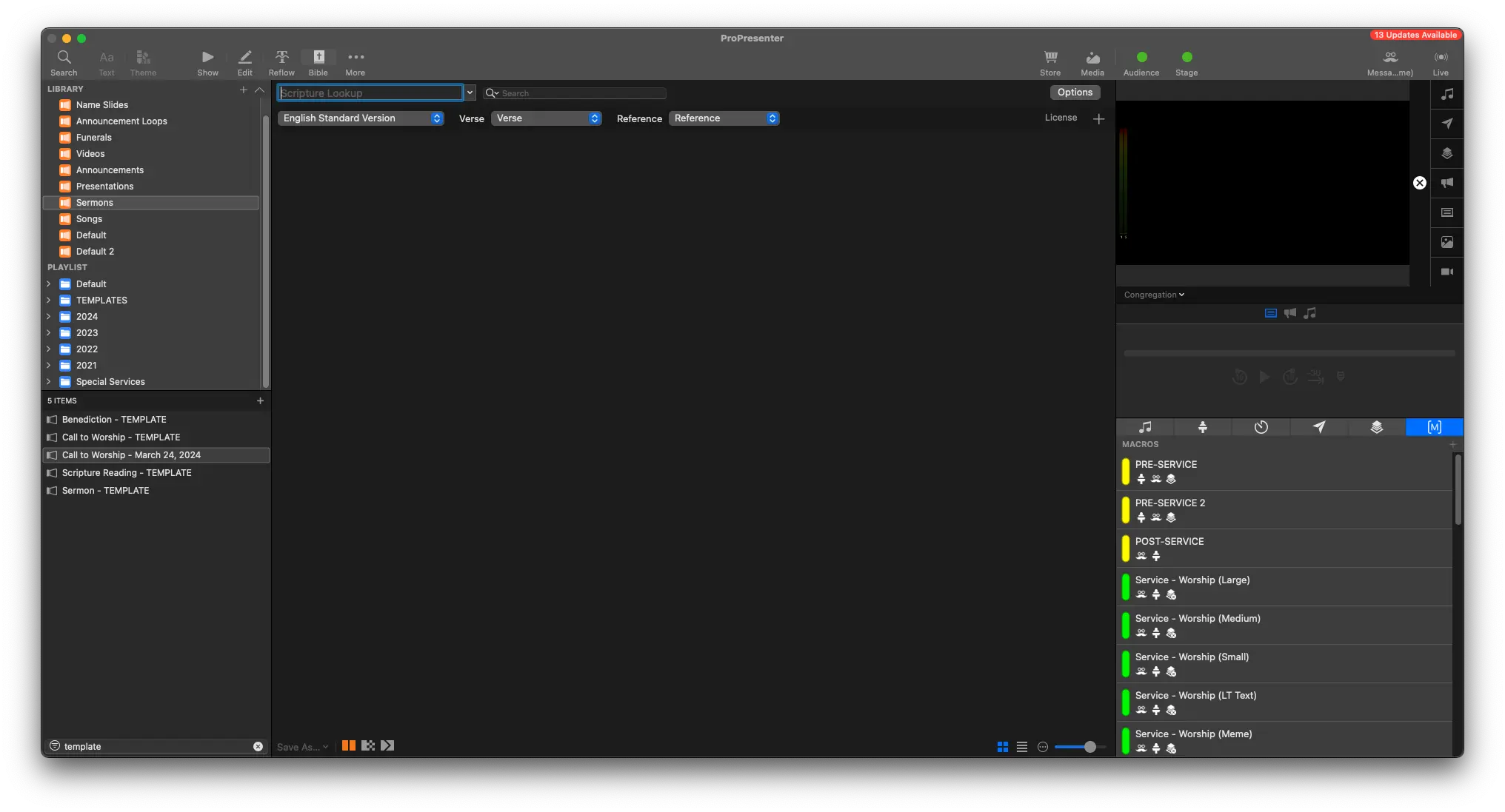
Paste in the scripture to the search bar at the top
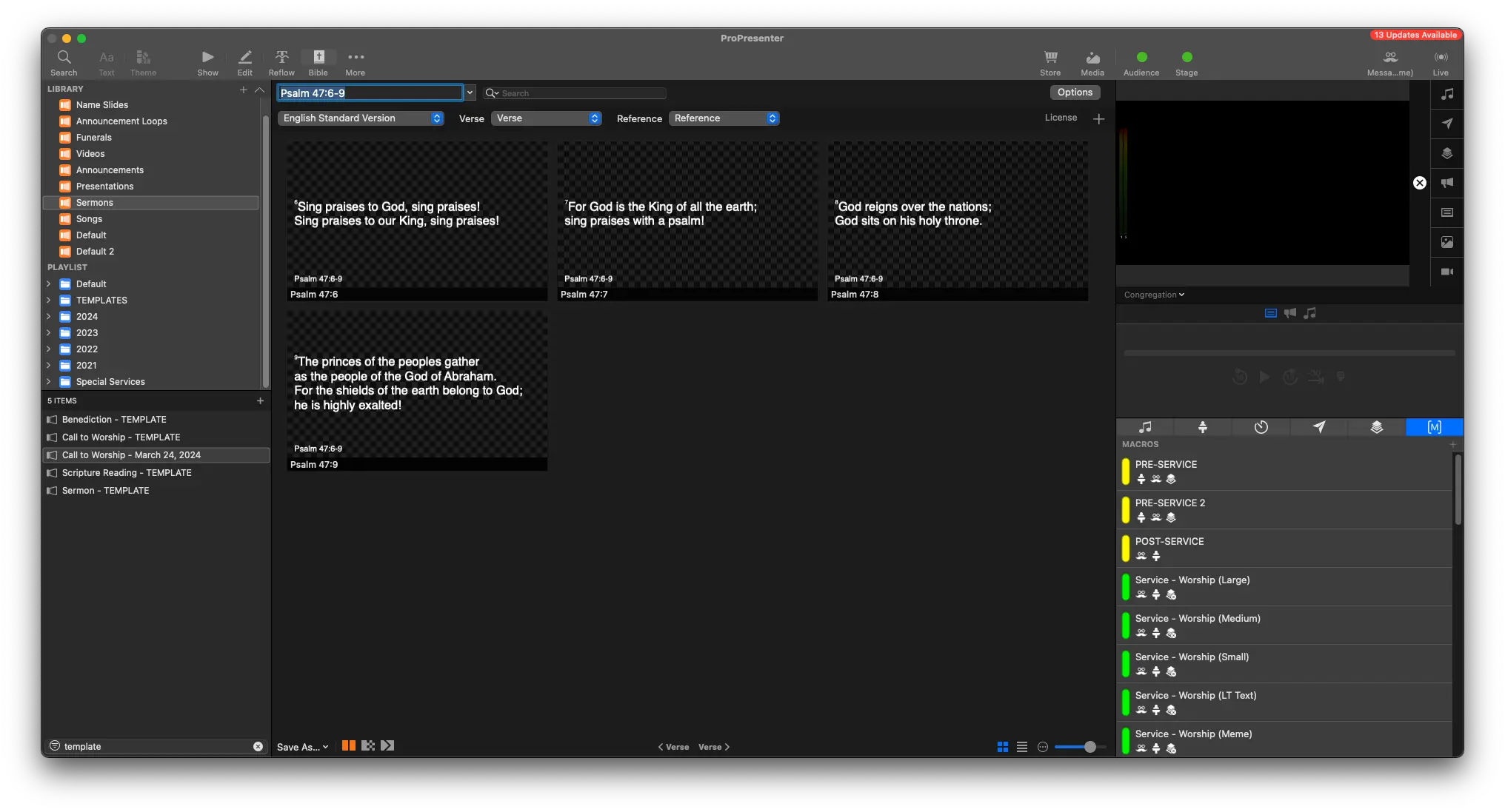
Make sure the Sermon is selected from the Playlist View With the Sermon selected, at the bottom left, click
Save As -> Copy to Selected
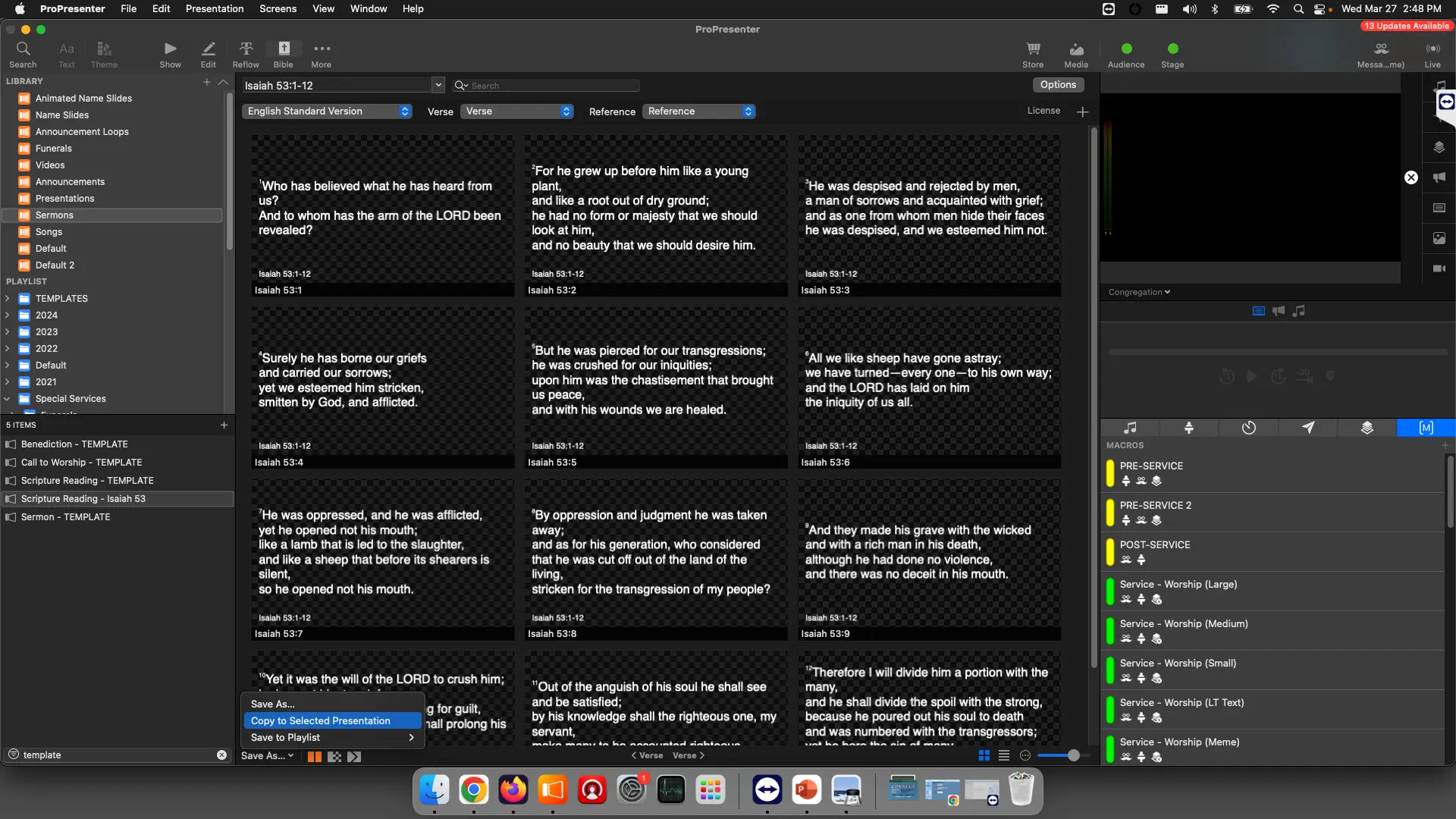

Make sure the sermon is selected when copying in scripture. Otherwise, the scripture will be added to the wrong presentation.
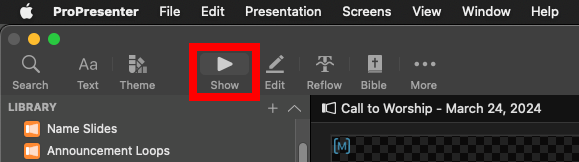
From the Toolbar, you can select Show with the Play icon to get back to the show view
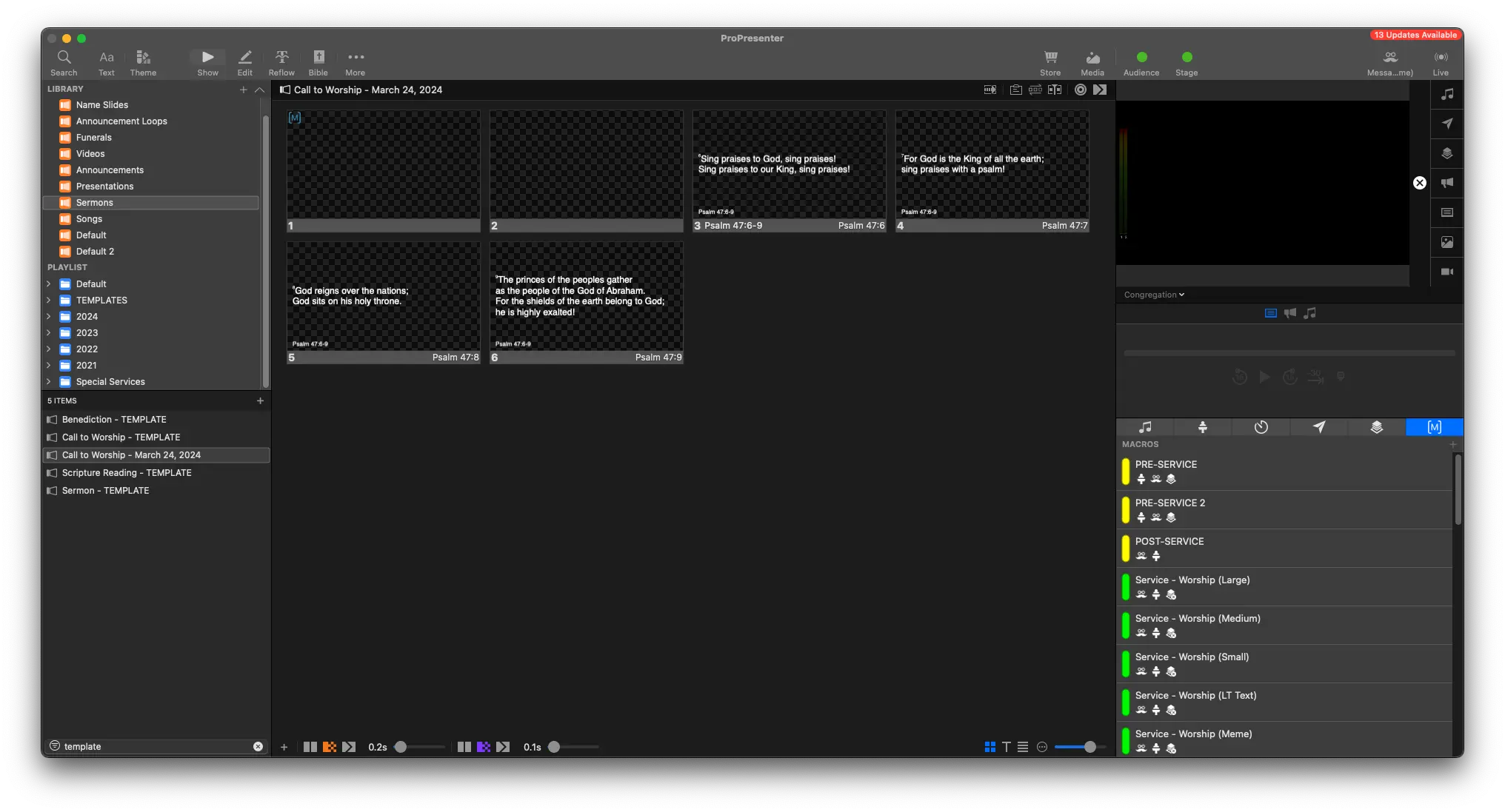
Move the blank slide to the end of the scripture
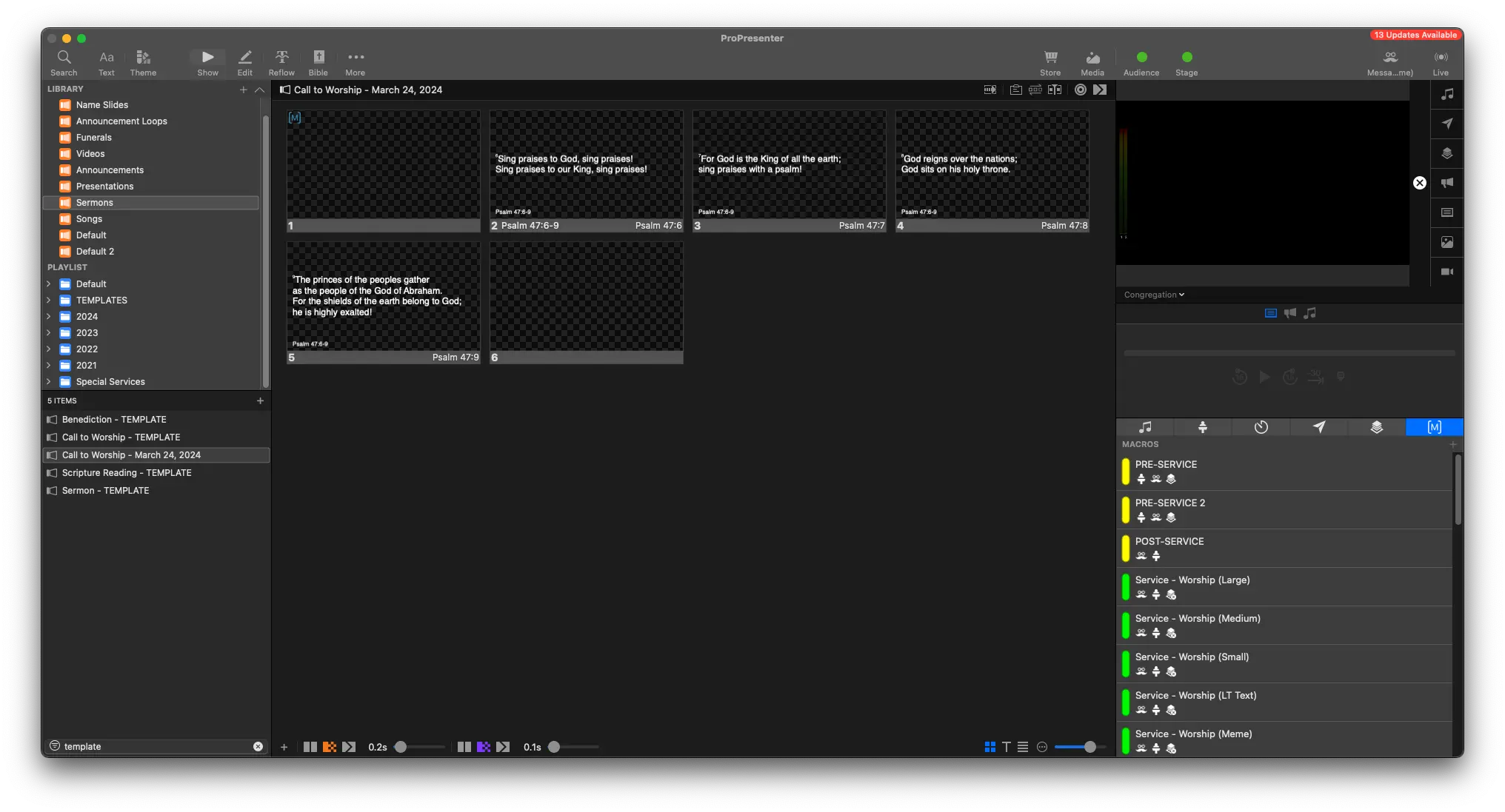
That's it! 🎉
You can now go back to the correct Playlist, and look up the name of the event
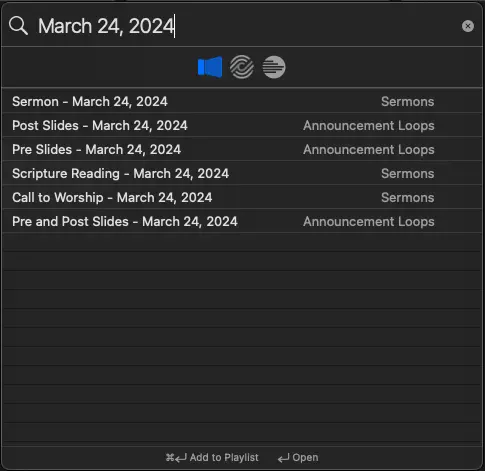
Drag and drop the scripture into the correct place in the playlist.