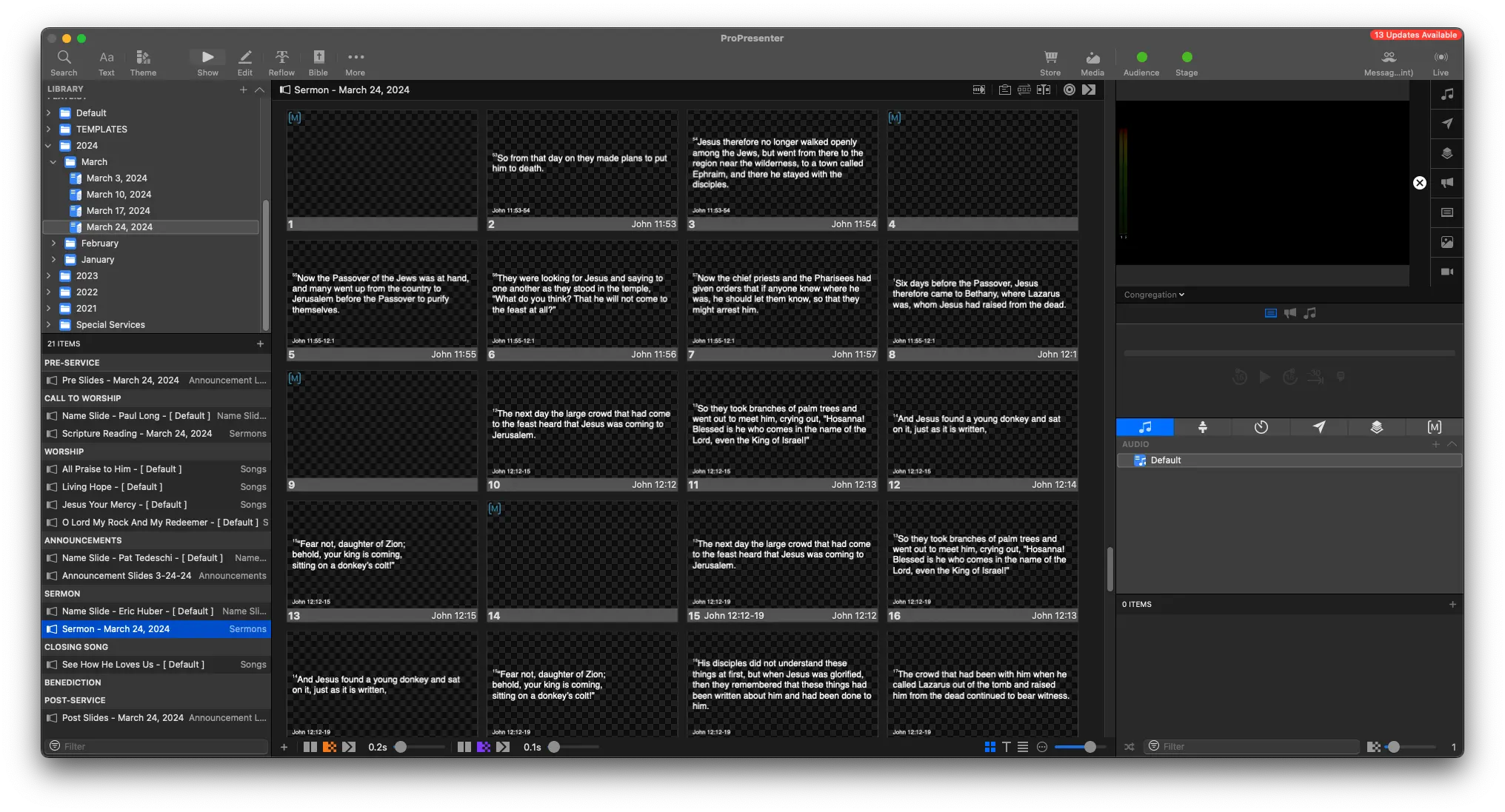
Sermon
Written Guide
Intro
Let's go through the basics of making a sermon.
This will be the most basic version of a sermon, where only scripture is needed.
This guide is for a minimal version of a sermon.
To see a full guide on sections like adding main points, bullet points, or sermon picture, navigate to the Sermon Guide.
Planning Center
First, we'll check into Planning Center to see what scripture is needed.
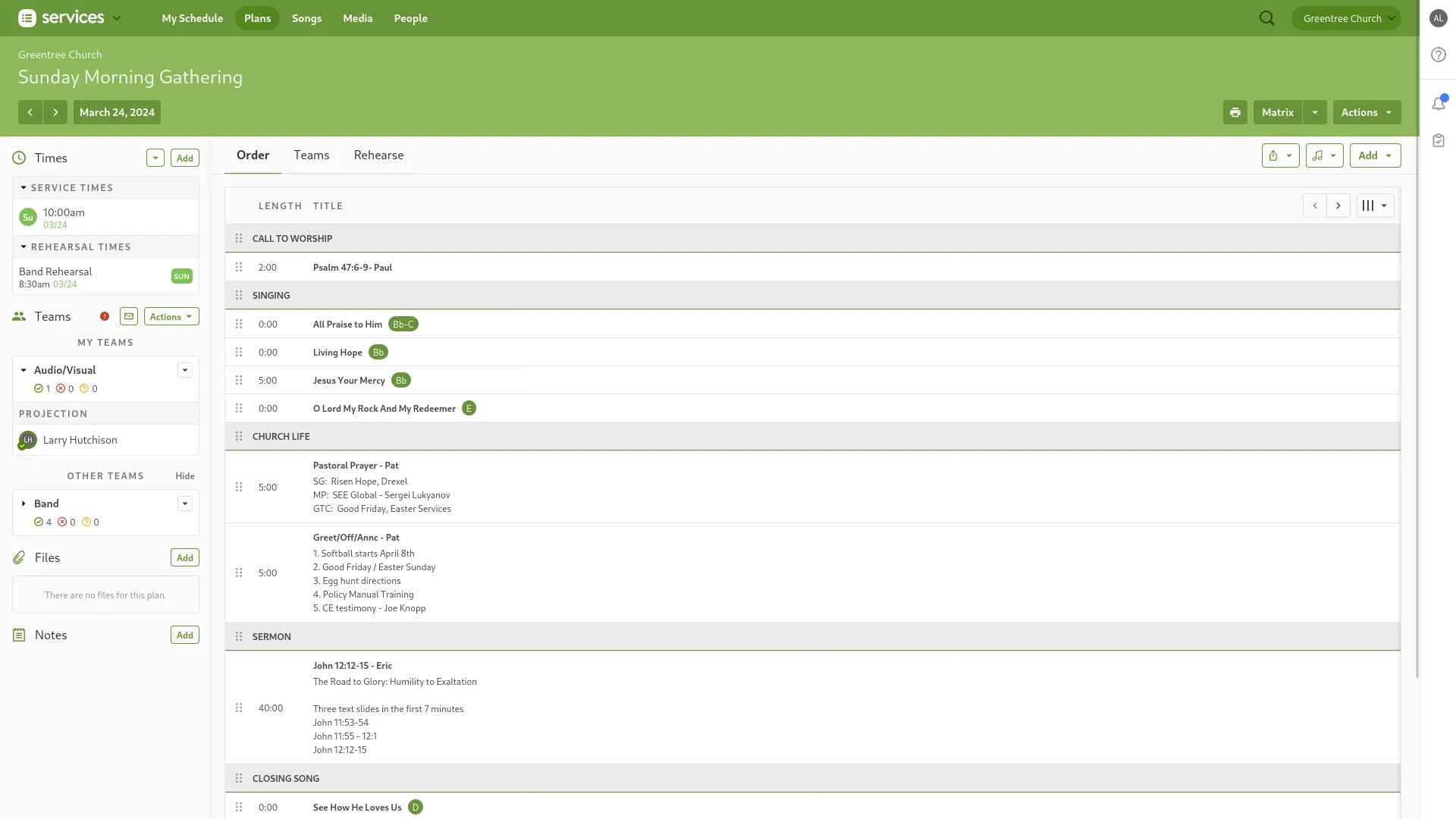
We can click on the sermon to get an overview of what's needed.

In this case, it's just scripture. We'll copy the scripture as needed from here.
ProPresenter
In ProPresenter, we'll navigate into the Sermons Library
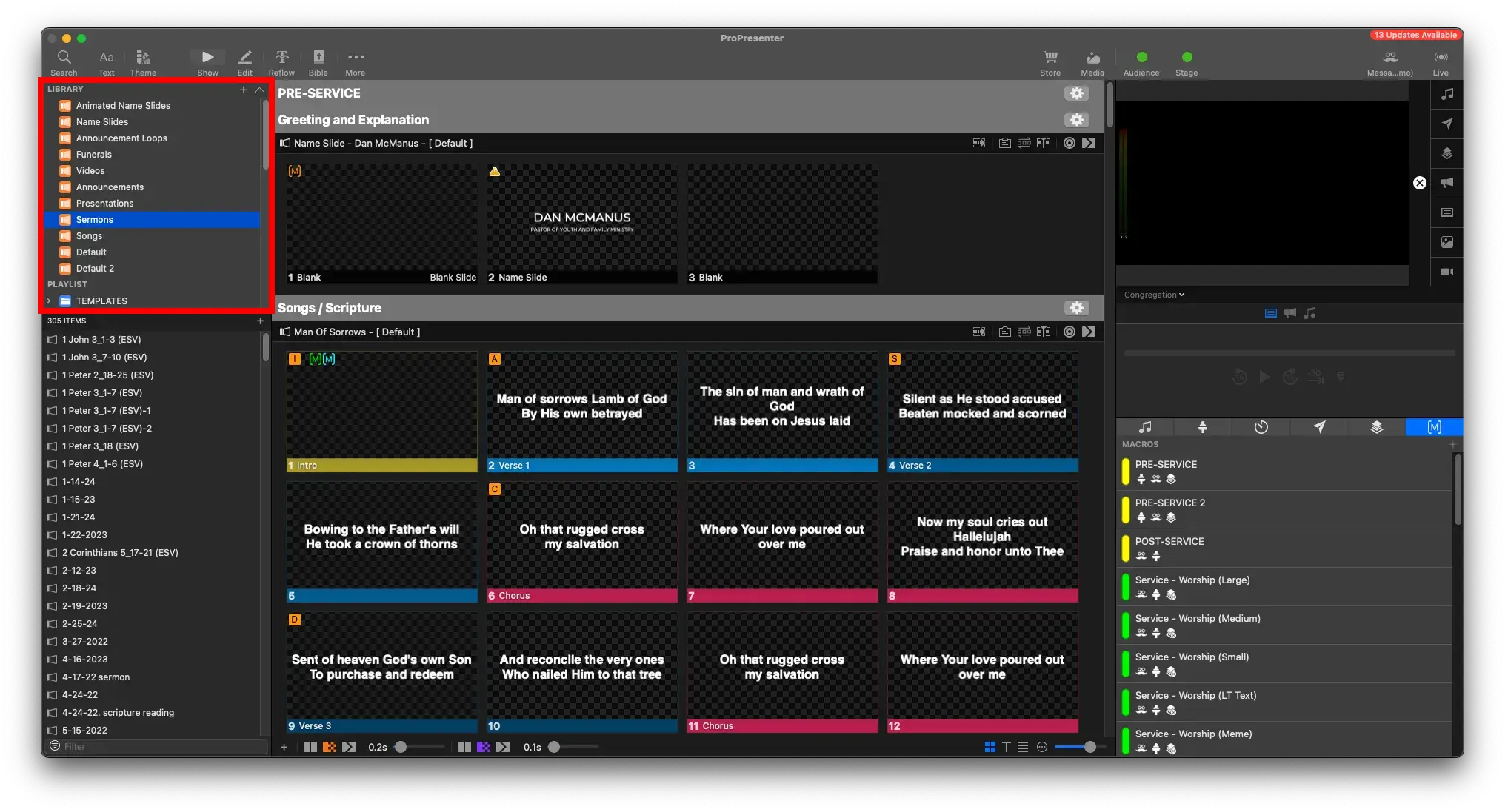
In the bottom left search field, we'll look for Template
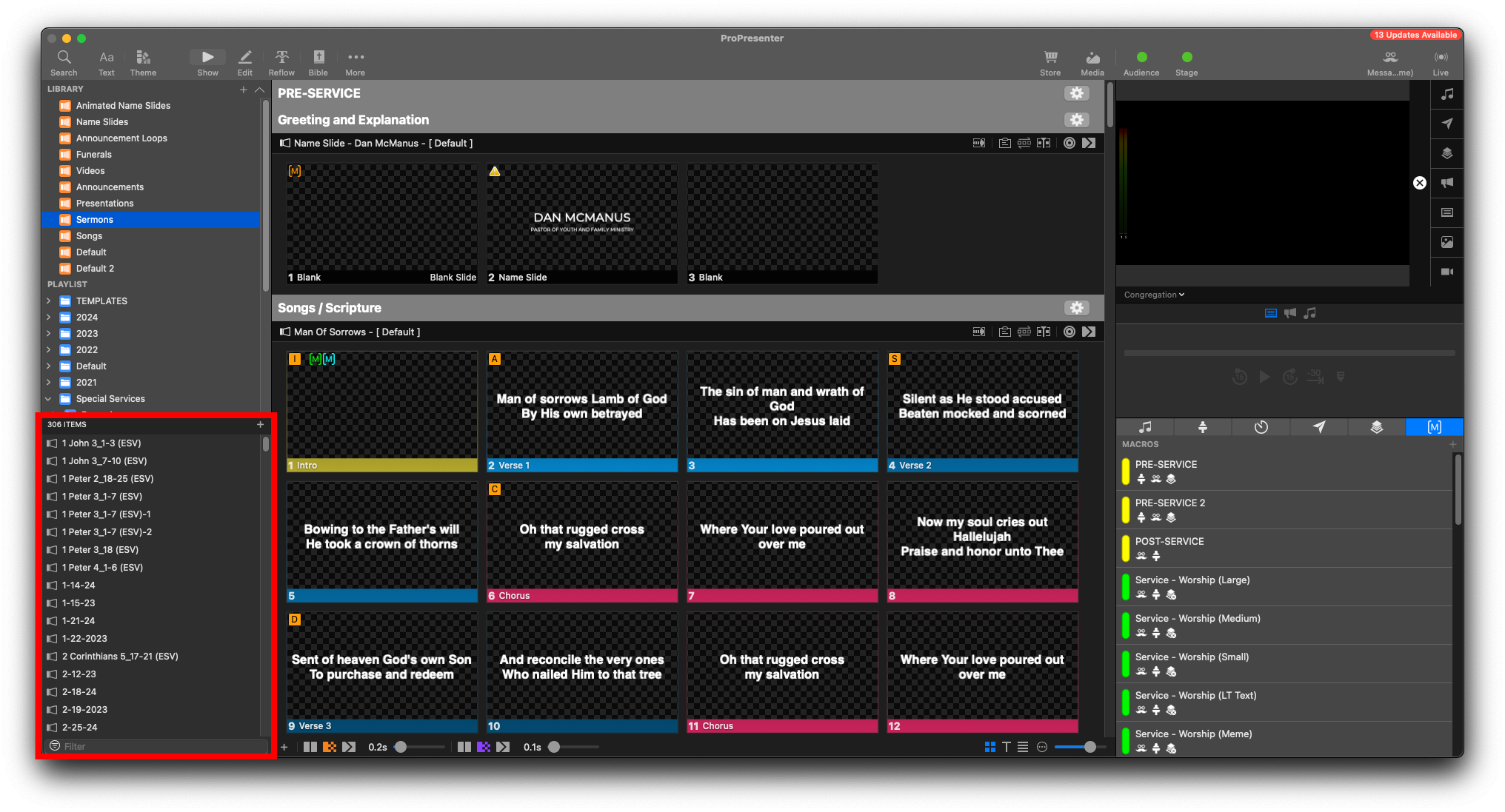

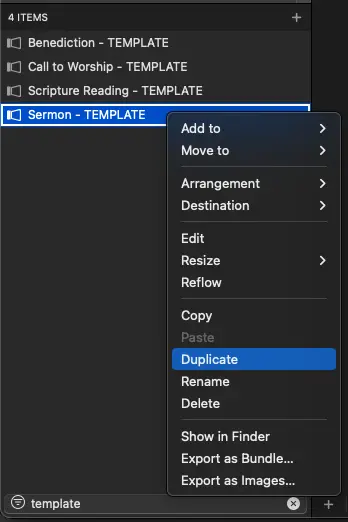
We'll right click the Sermon - TEMPLATE and select Duplicate
Right Click the duplicated sermon, and select Rename
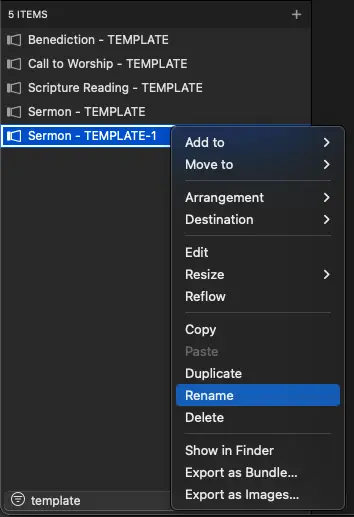
We'll rename it to the date of the sermon or event, typically in Month Day, Year Format

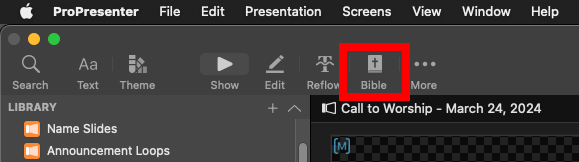
With the sermon selected, click the Bible at the top toolbar to get into the Bible Page
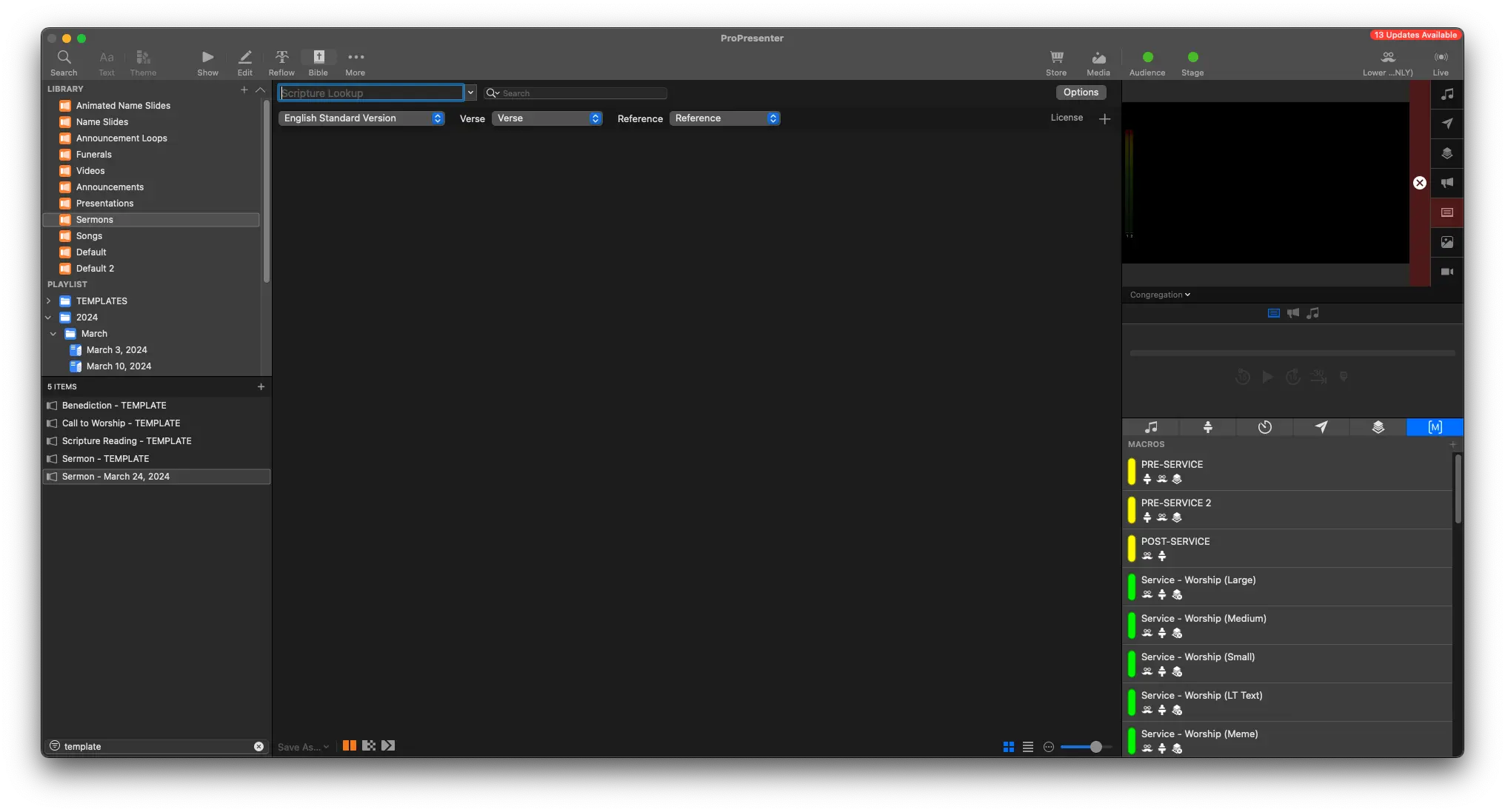
In the search bar, we'll paste in whatever scripture we need

If scripture looks like it's taking up too many slides, or too little, try checking or unchecking Break On Verse from the options

With the Sermon selected, at the bottom left, click
Save As -> Copy to Selected
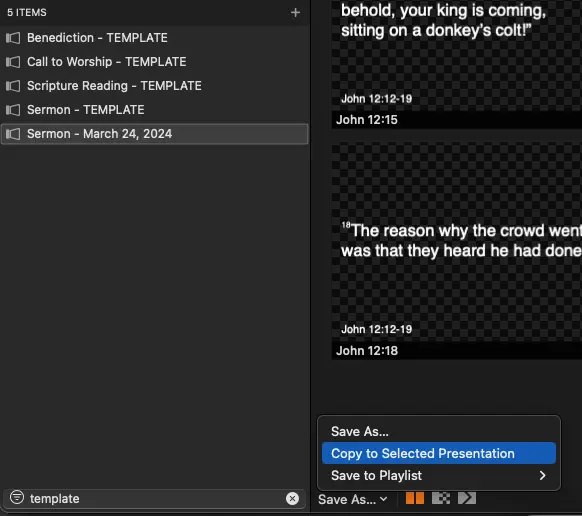
Make sure the sermon is selected when copying in scripture. Otherwise, the scripture will be added to the wrong presentation.
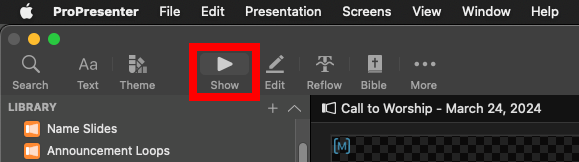
You can now click the Show button at the top toolbar to go back to the presentation, where you should see the scripture added.
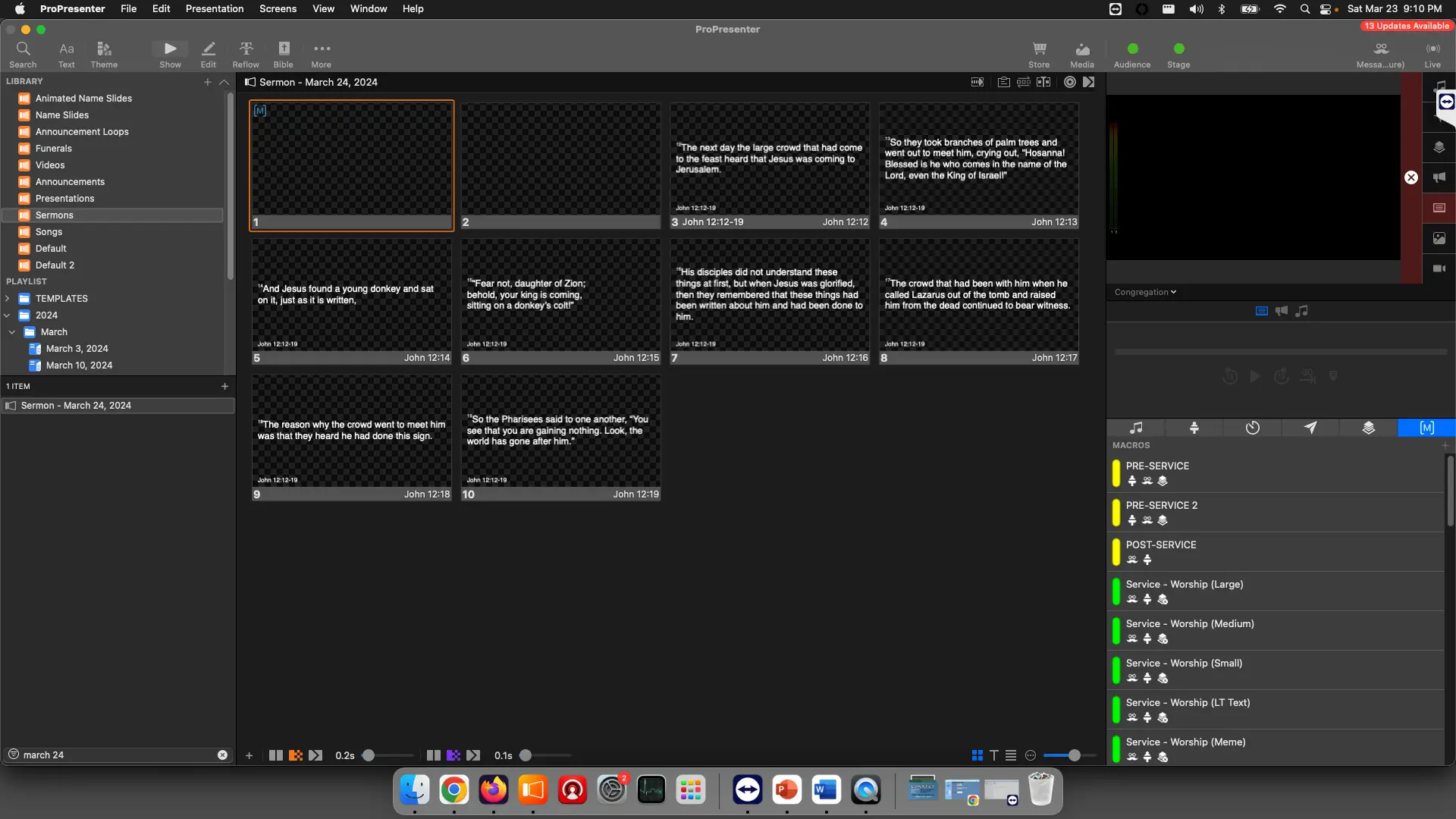
Move the blank slide from before the scripture to the end
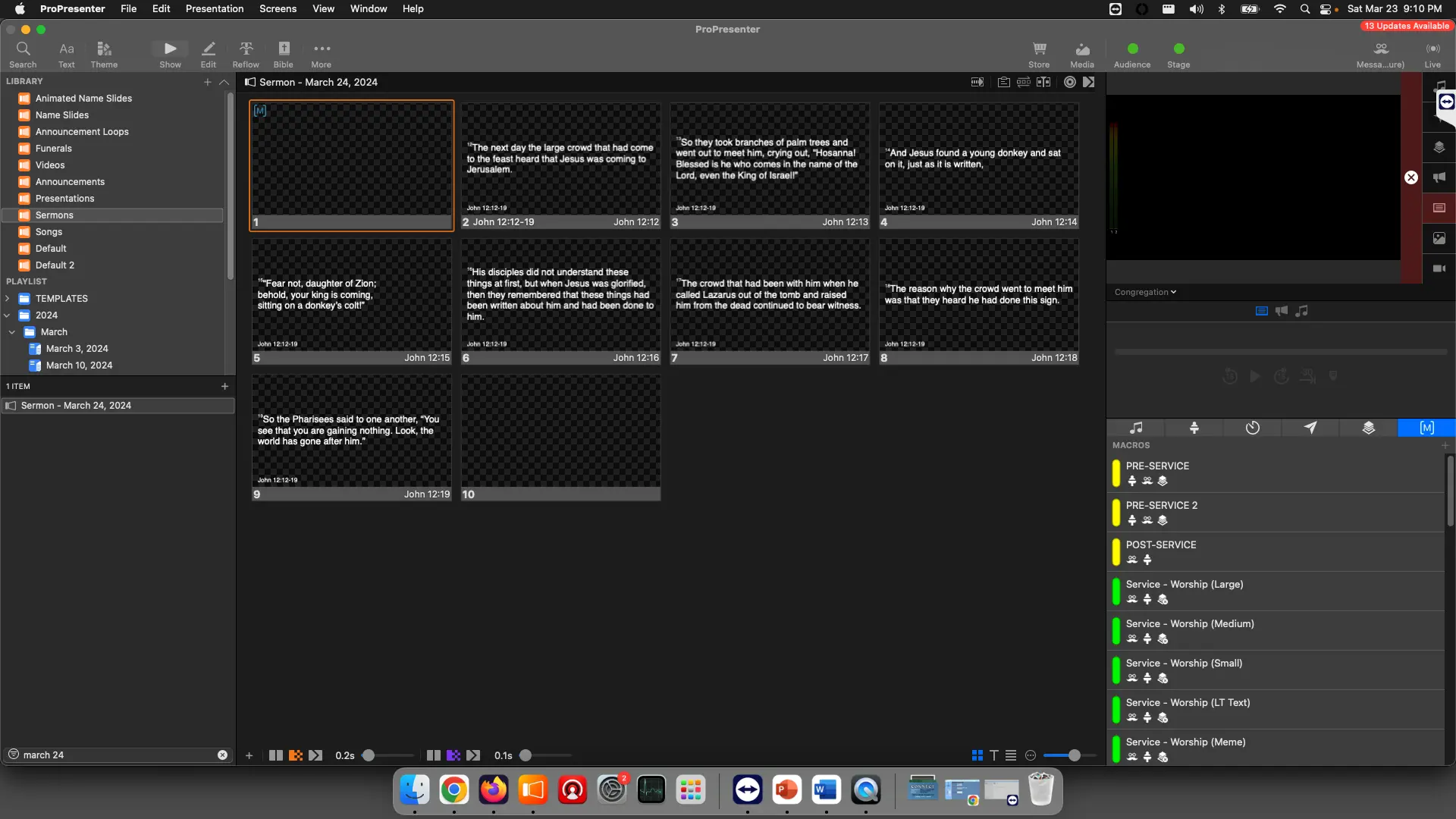
Double check that the M Macro on the first slide is set to Sermon - Scripture by hovering over it with your mouse
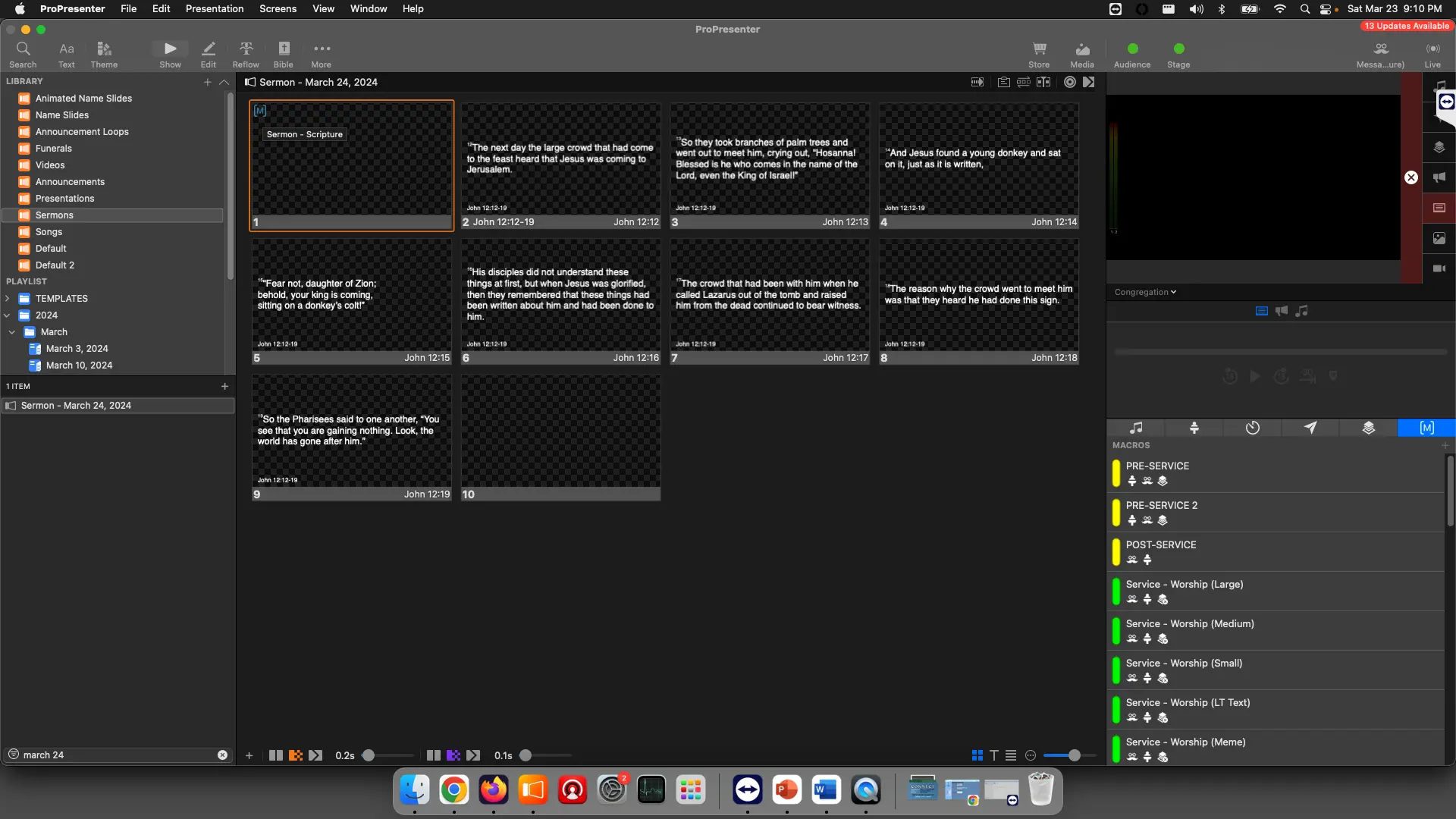
We'll repeat this same process for any scripture we need to add.
Adding Sermon to Playlist
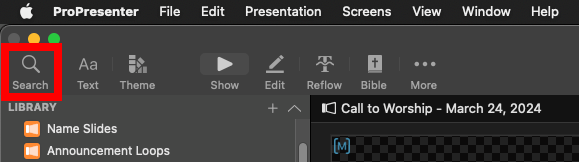
We can navigate back to our Playlist, then click the Search icon in the top right
We'll search for the sermon by the date or event name
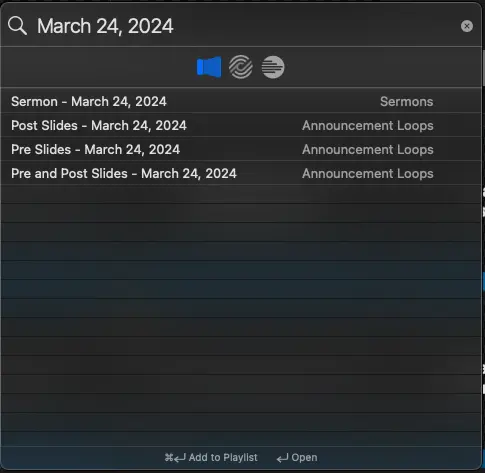
We can now add the sermon into our playlist in the right spot.