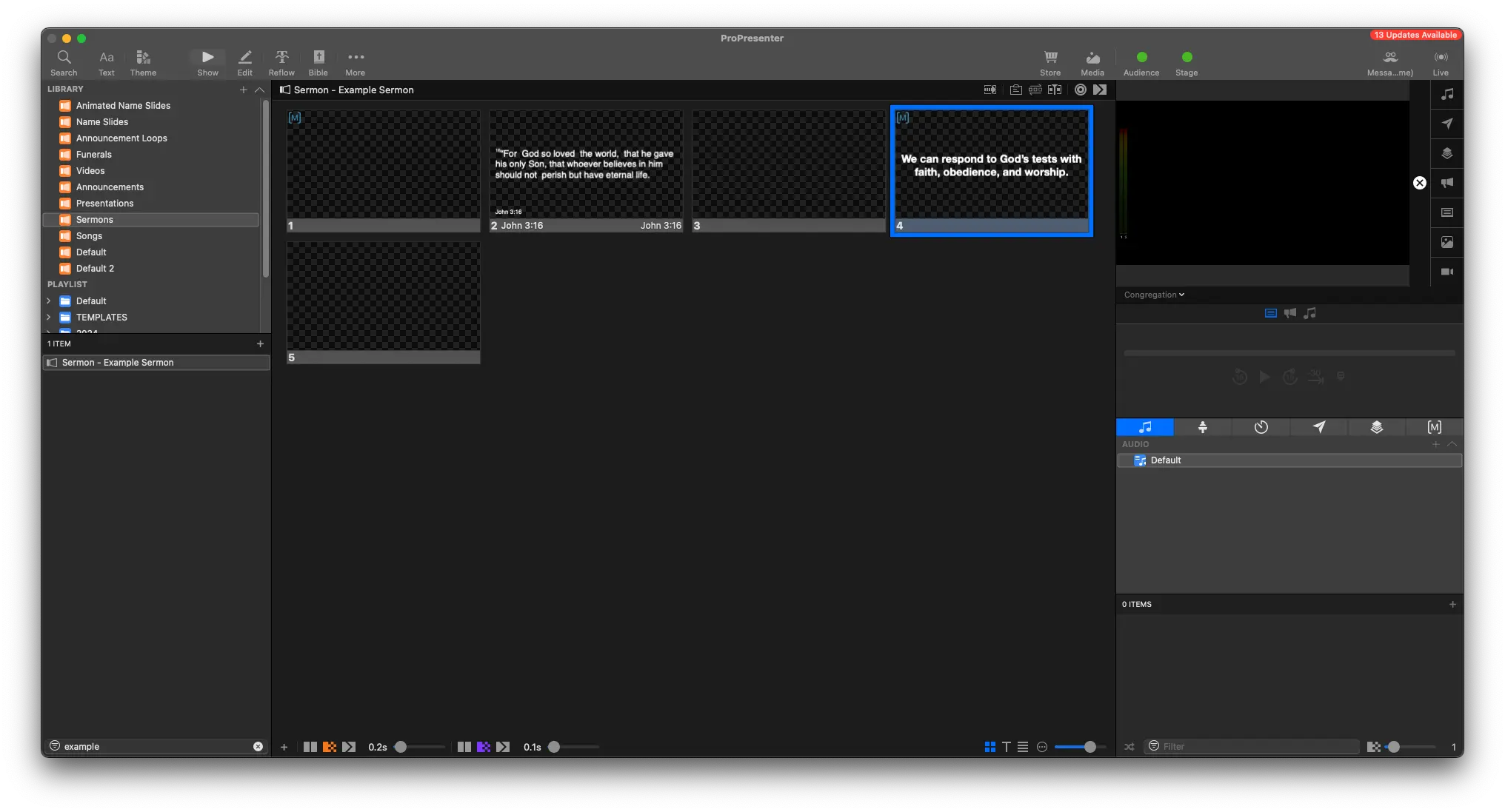
Main Point
Written Guide
Main points are typically added to the sermon to summarize the sermon.
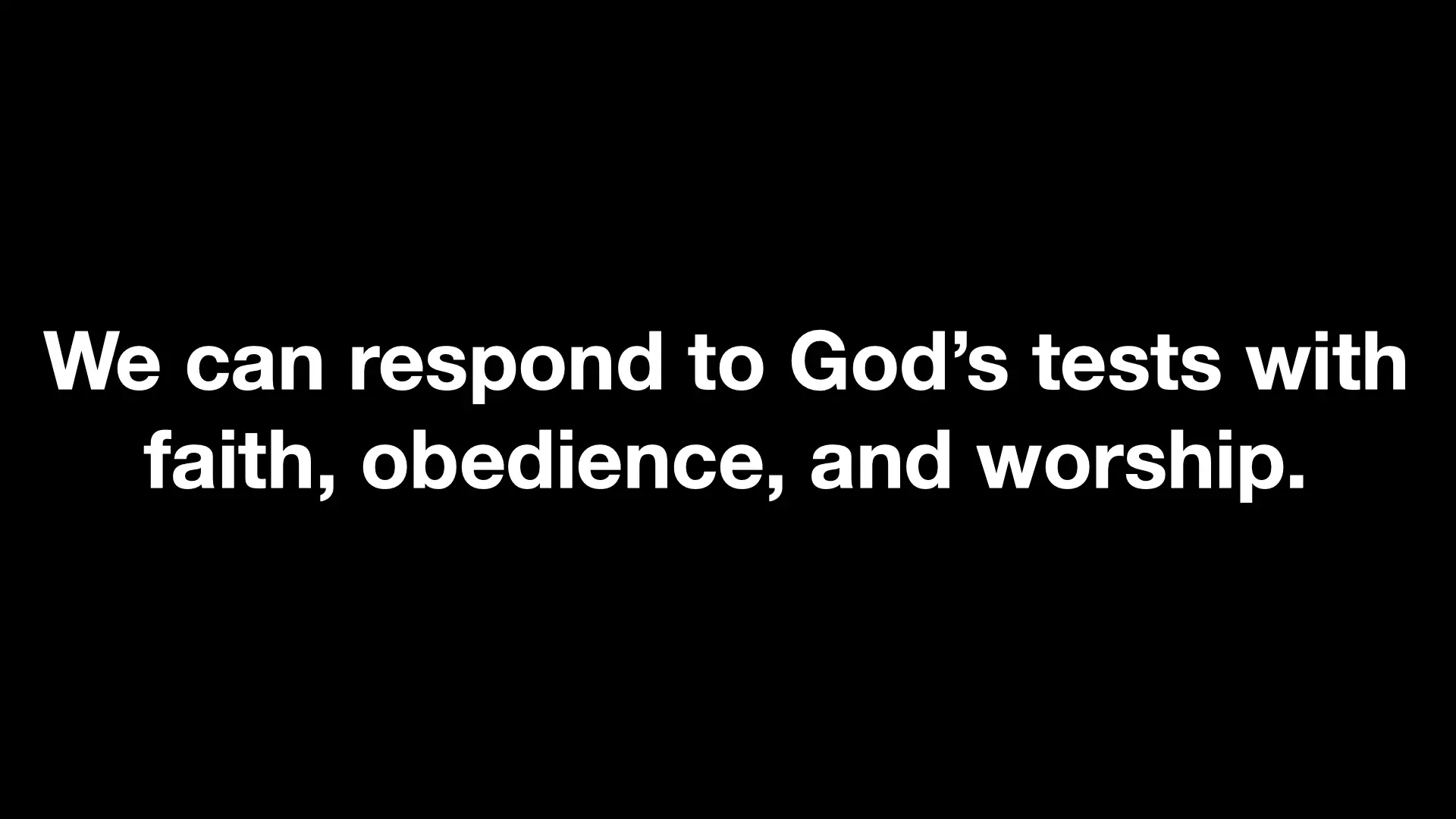
Main Points will look like this for the congregation
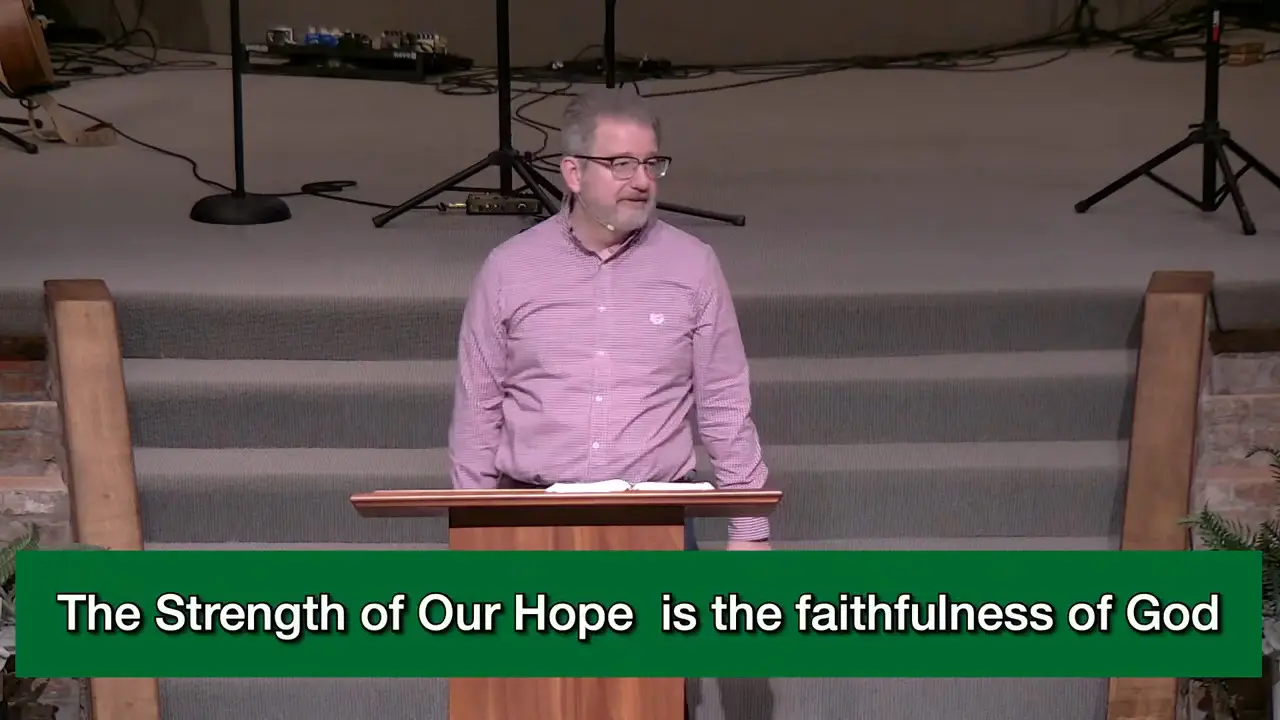
And like this for the live stream
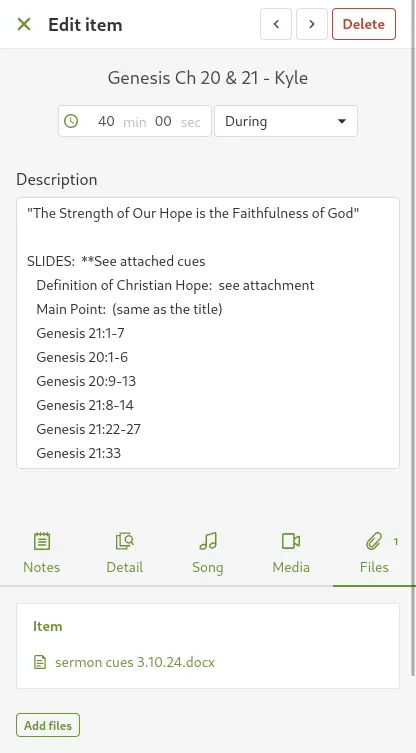
Planning Center
Click on the sermon in Planning Center to bring up the description
You can copy the text from here.
It may also be attached to the Files tab in Planning Center. Download the Word Document and open it to follow along.

Most pastors highlight anything they need projected.
We see this with Kyle
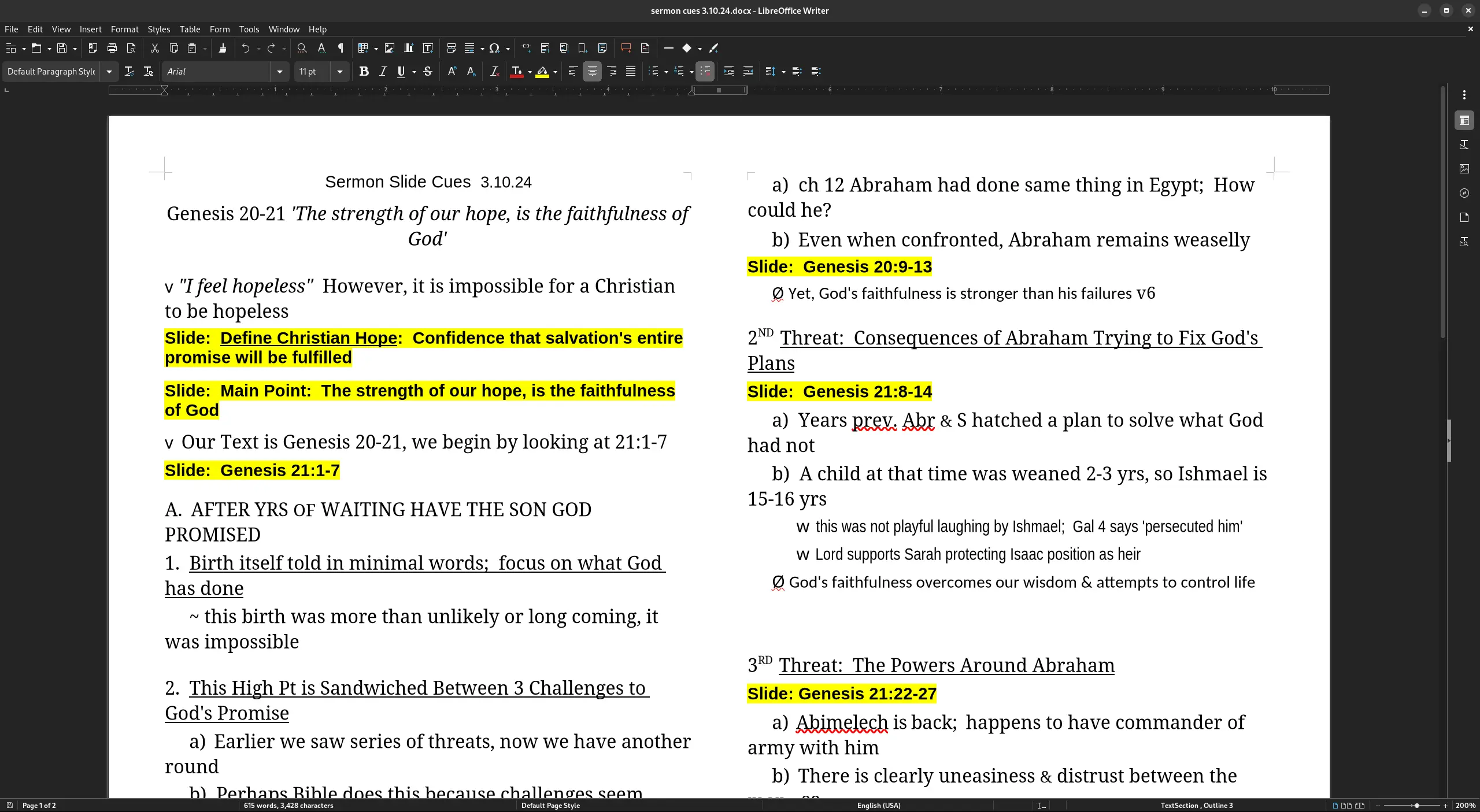
As well as Paul
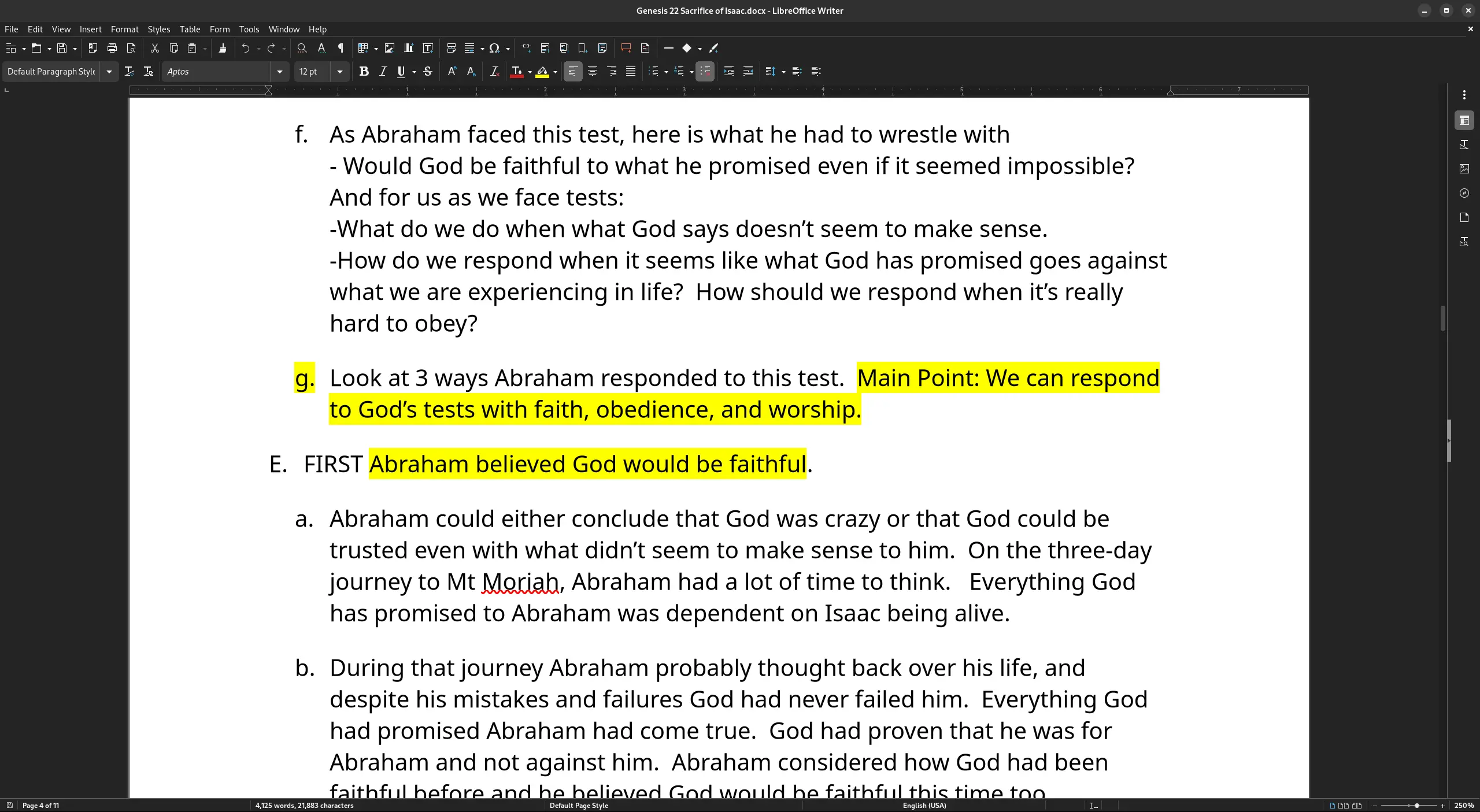
Always read the descriptions in Planning Center. In some cases, they may have a request.
In this case, Paul requests each bullet point also have the previous point.
ProPresenter
In ProPresenter, navigate to the sermon.
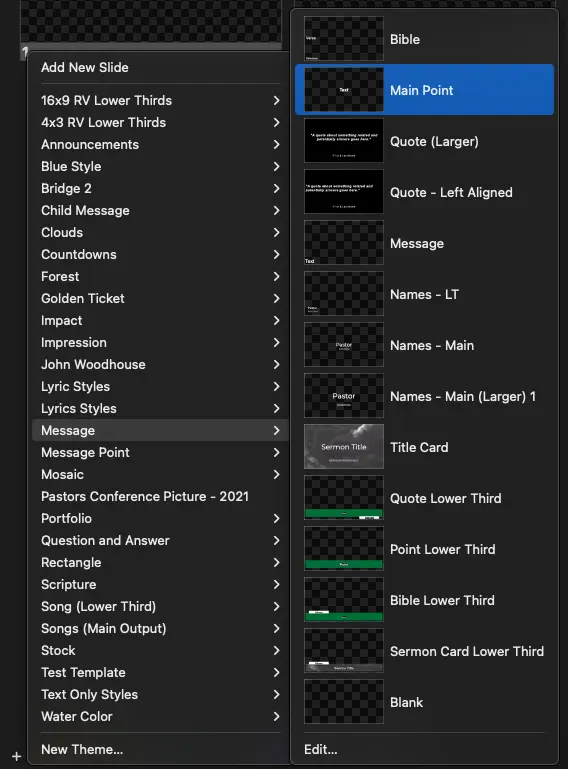
At the bottom left of the sermon, select
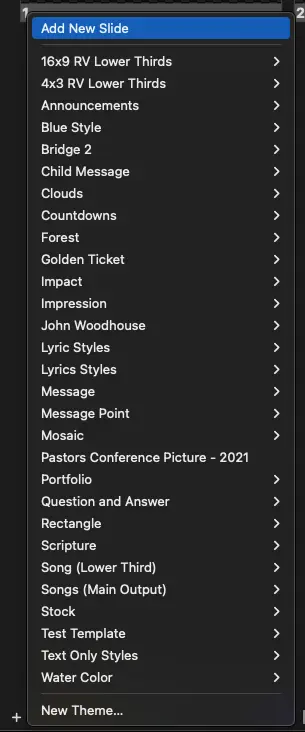
+ -> Message -> Main Point
A Main Point Slide should now be added onto the sermon.
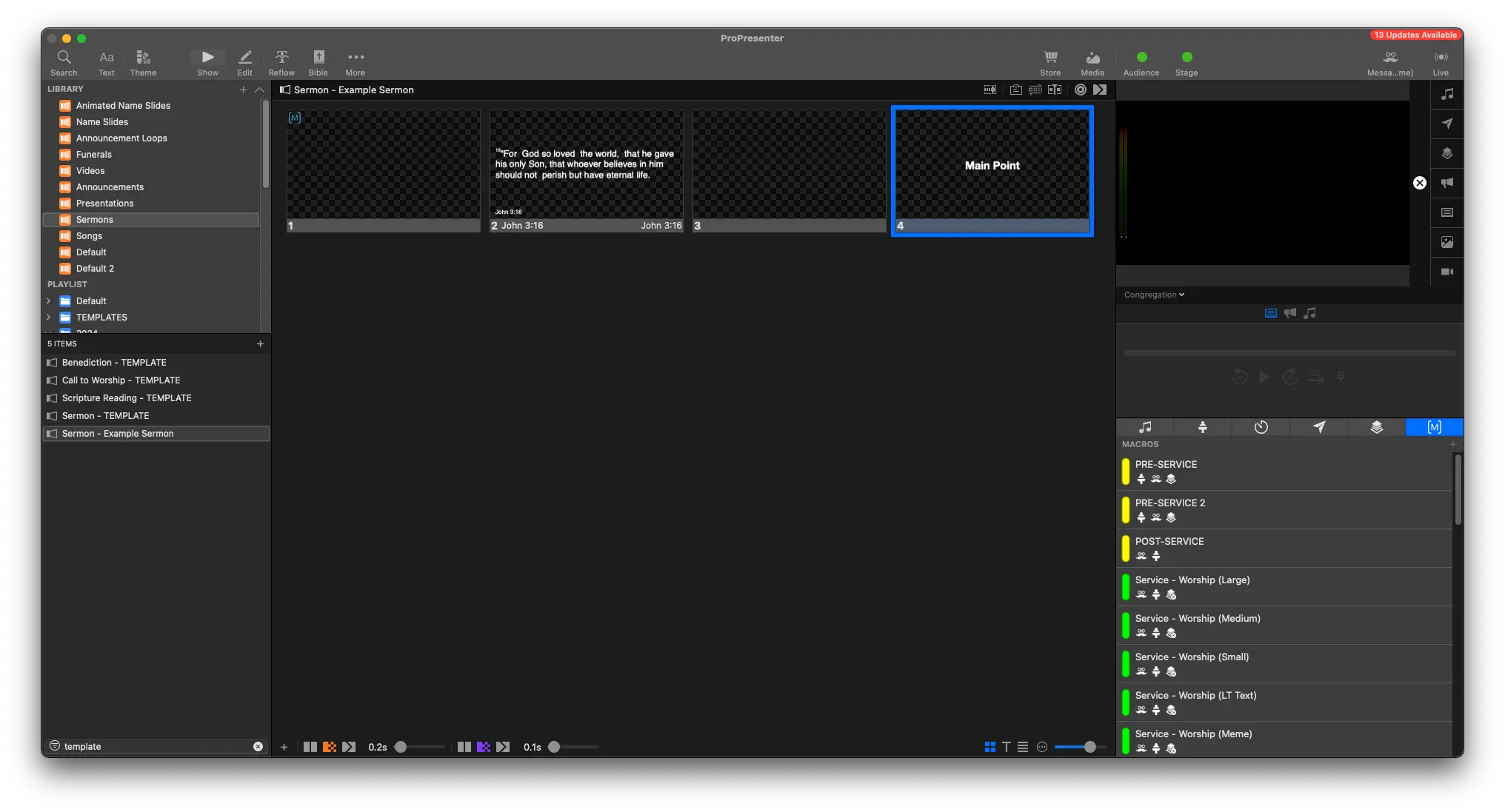
Right click the slide, and select Edit

This should bring you into the Edit Page
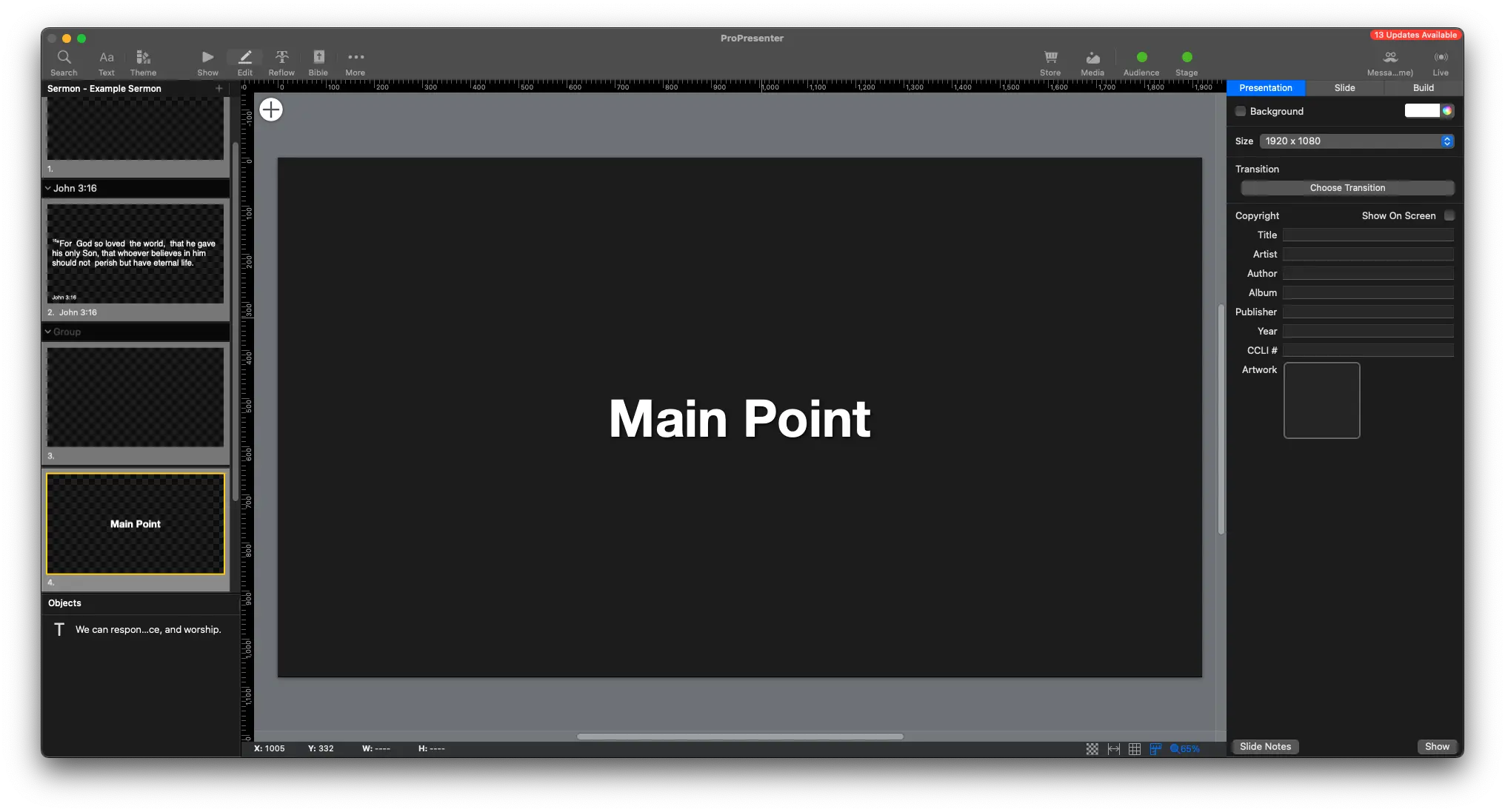
If you didn't already, copy the Main Point text from Planning Center or the Sermon Cues.
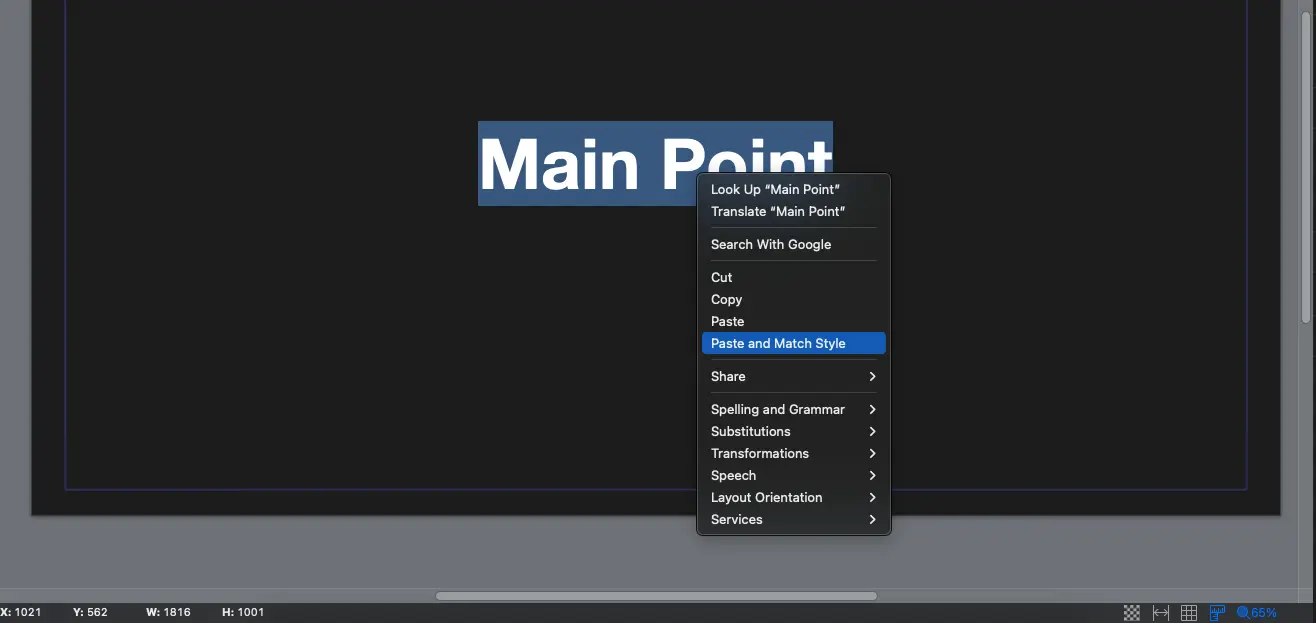
With the text selected, right click and select Paste and Match Style
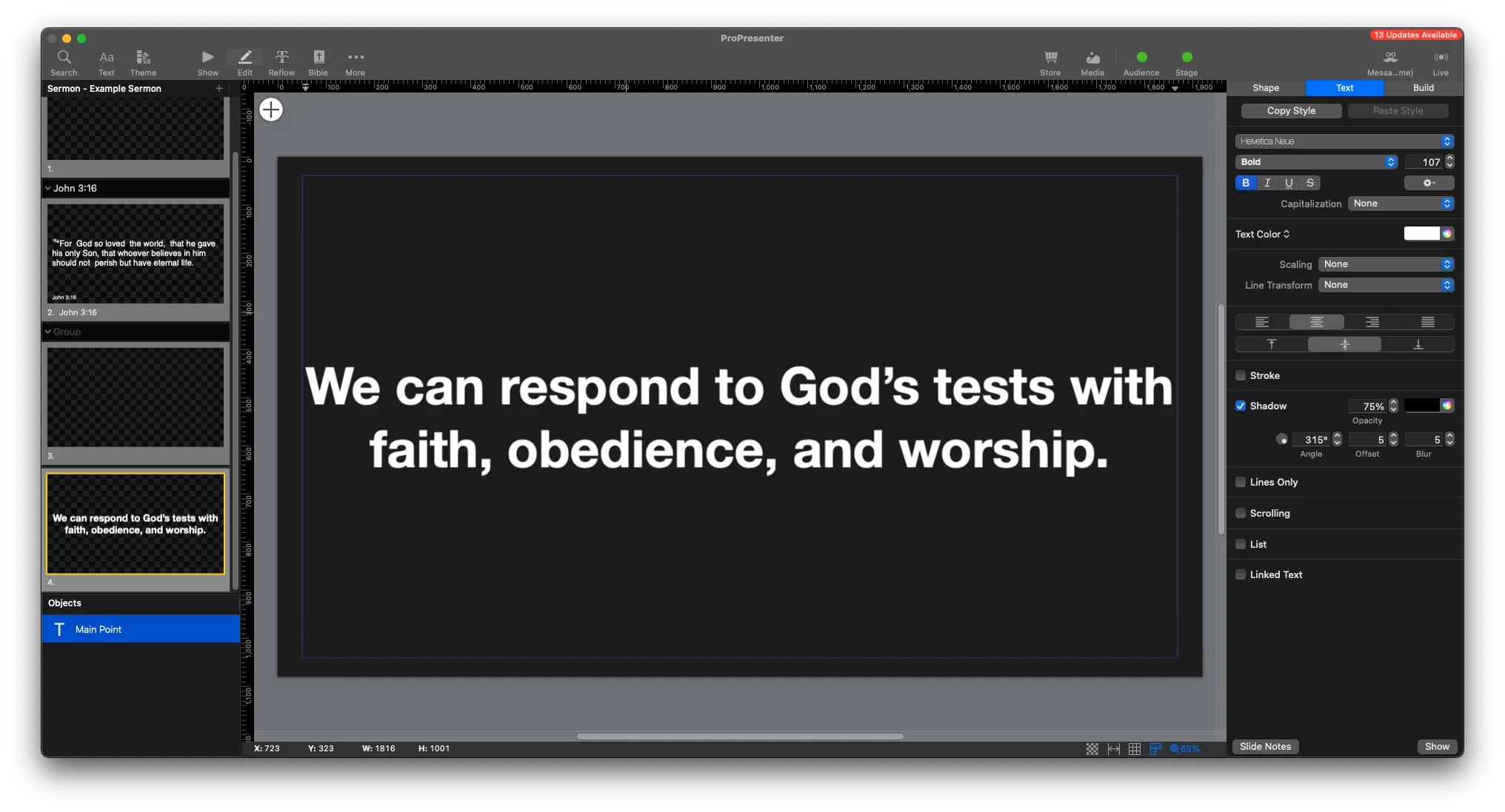
The text from the main point should now be added.
Add line breaks where needed if it breaks awkwardly.
Go back to the Show Page
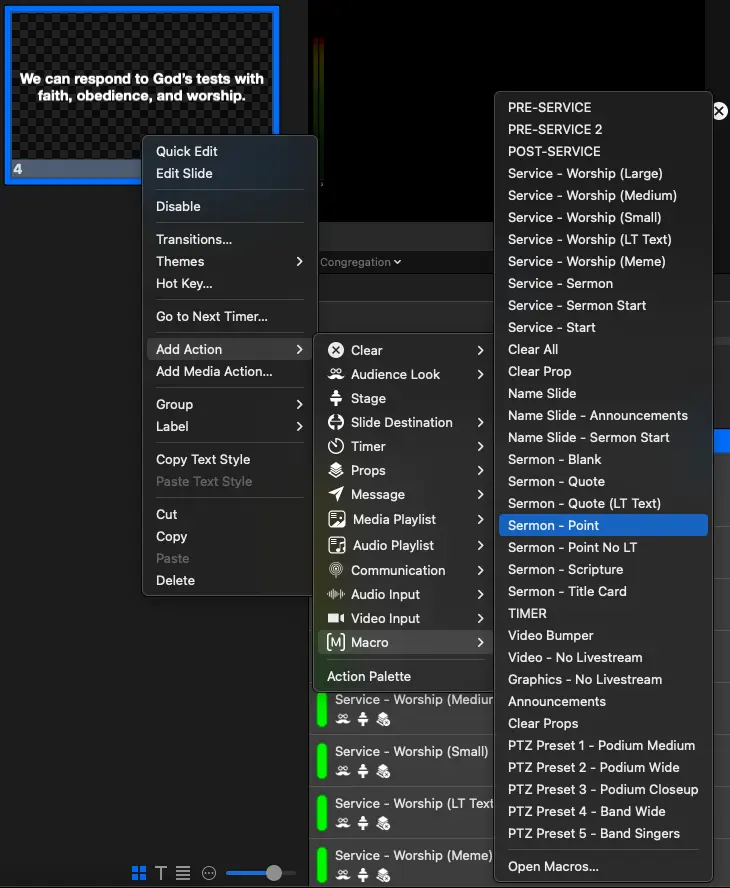
Right click the slide, and select
Add Action -> Macro -> Sermon (Point)
Don't forget to add a blank slide in afterwards
+ -> Add New Slide
The main point should look something like this.