Announcement Slides
Written Guide
Announcements happen right before the sermon, and after prayer.
They'll look like this to the audience.

And like this for the live stream.

Planning Center
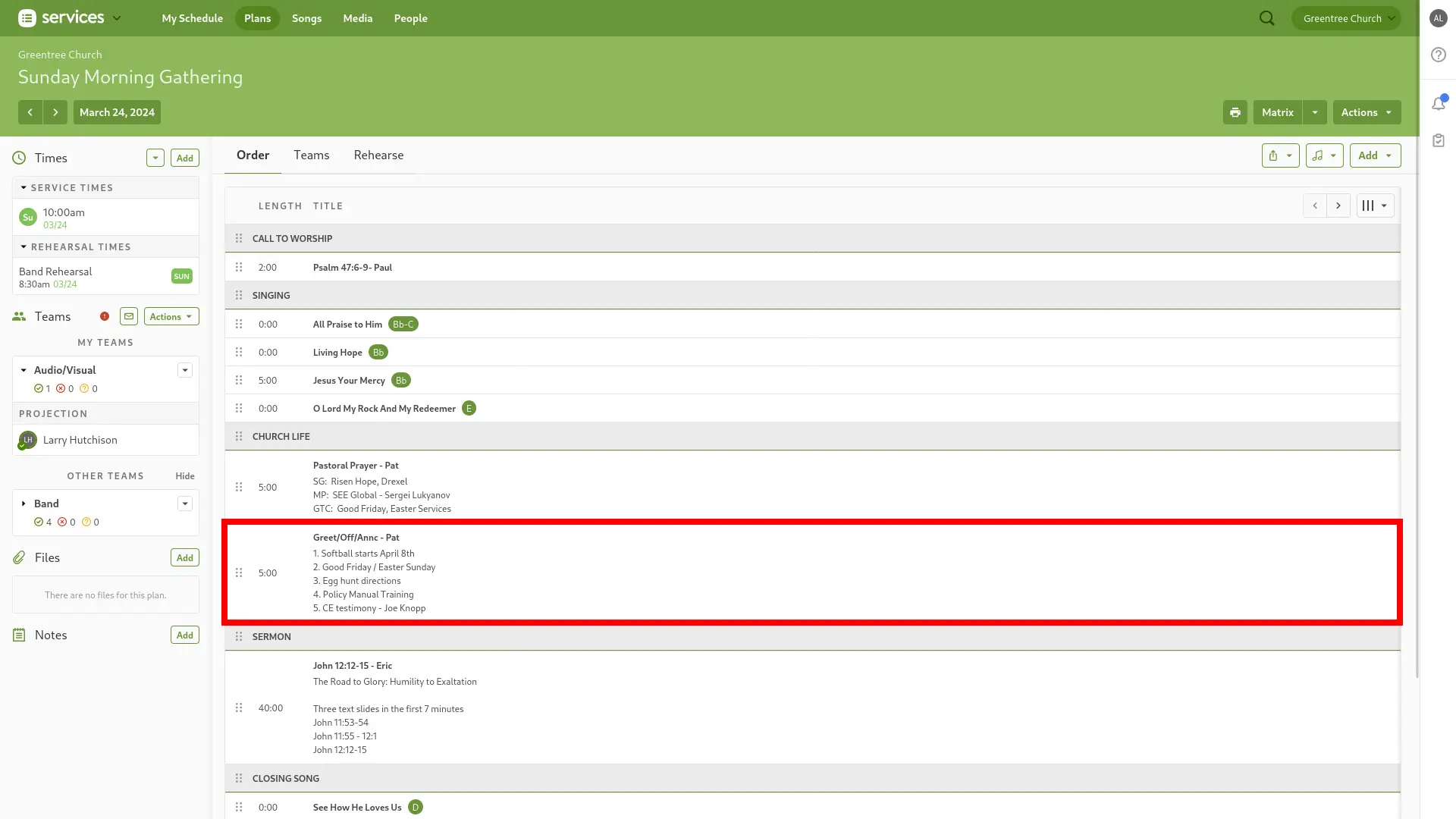
Similarly to the announcements, first, we need to download the slides from Planning Center.
These can be found by clicking on the Announcements under Church Life to bring up the detail view.
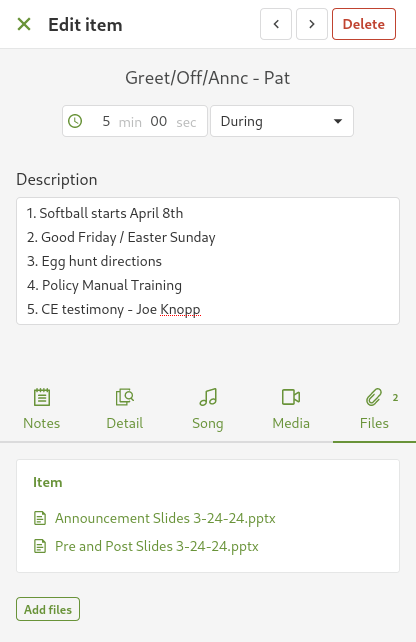
Then, download Announcement Slides - DATE from the Files Tab
Import Slides
First, let's import the slides into ProPresenter.
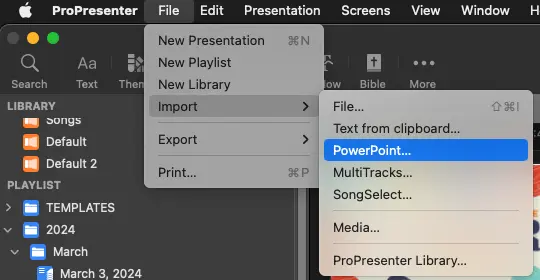
- In ProPresenter, select
File -> Import -> PowerPoint
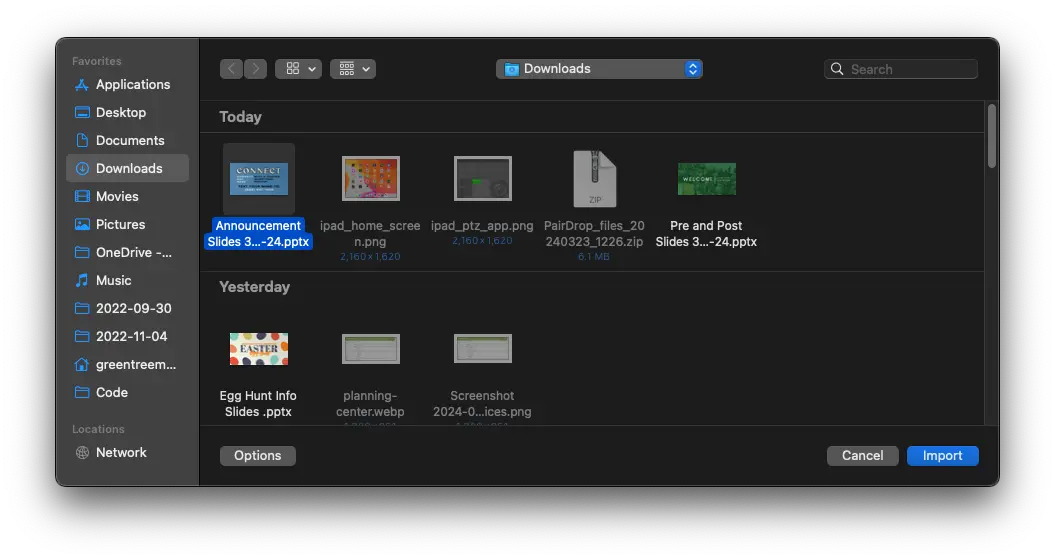
Select the Announcement Slides - Current Date from Downloads, and click Import
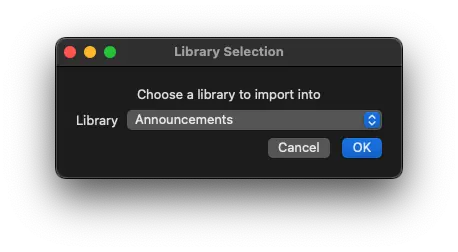
From the Library Selection drop down, select the Announcements Library
The Announcement Slides will now be imported at the bottom of the playlist
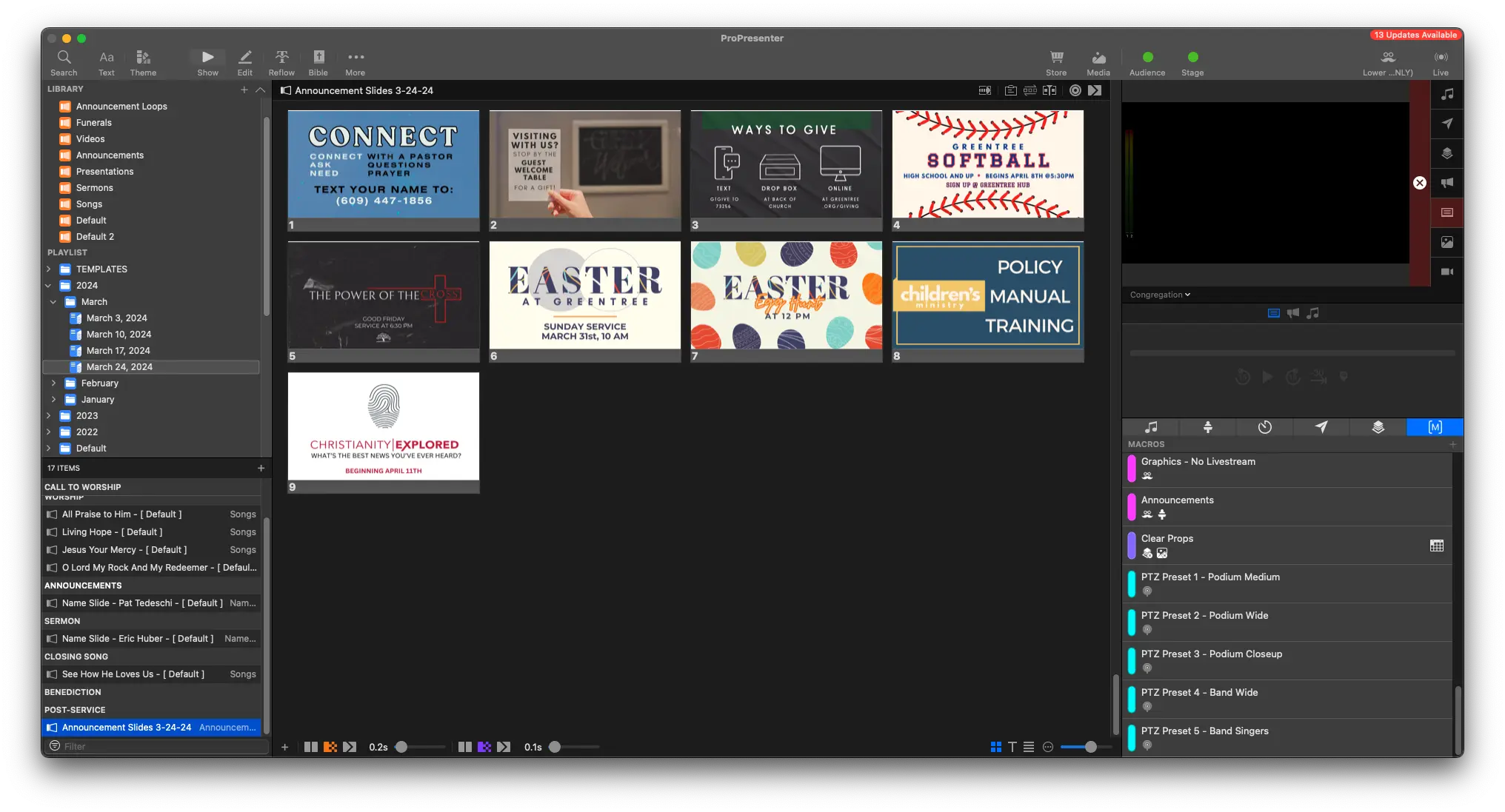
You can move the announcement slides into the right place, after the name slide under the Announcements header
Add Macro
Right click the first slide of the announcements, and select
Add Action -> Macro -> POST-SERVICE
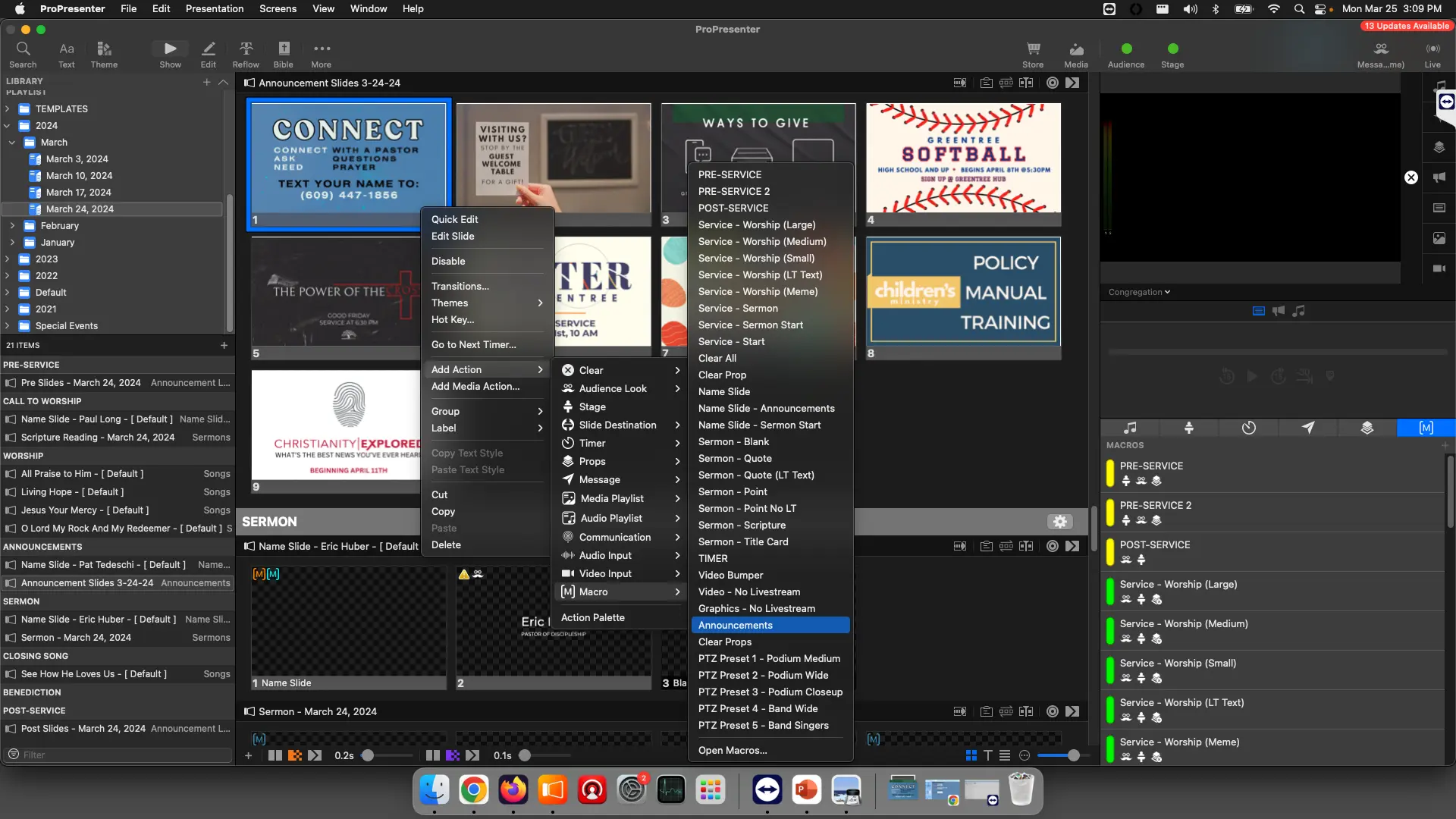
You can also add the macro by clicking and dragging the yellow POST-SERVICE macro from the Macro page, and letting go over the first slide.